Hello. I have gSender 1.6.4 (Altmill 2x4/ATC/TLS) and have a question with the Autozero Touch Plate.
I’d like to reference something other than the lower left corner. I thought I had read a comment on the forum that there is an arrow in the gSender probe tab to set this.
I don’t see that. As far as I can see, I can only reference the lower left corner.
I saw in the web description for the Autozero Touch Plate that it said it only works with the lower left corner and later versions of gSender would allow other corners. I’m not sure how current that comment was, and just want to make sure there is currently no way to reference any other corner than the lower left.
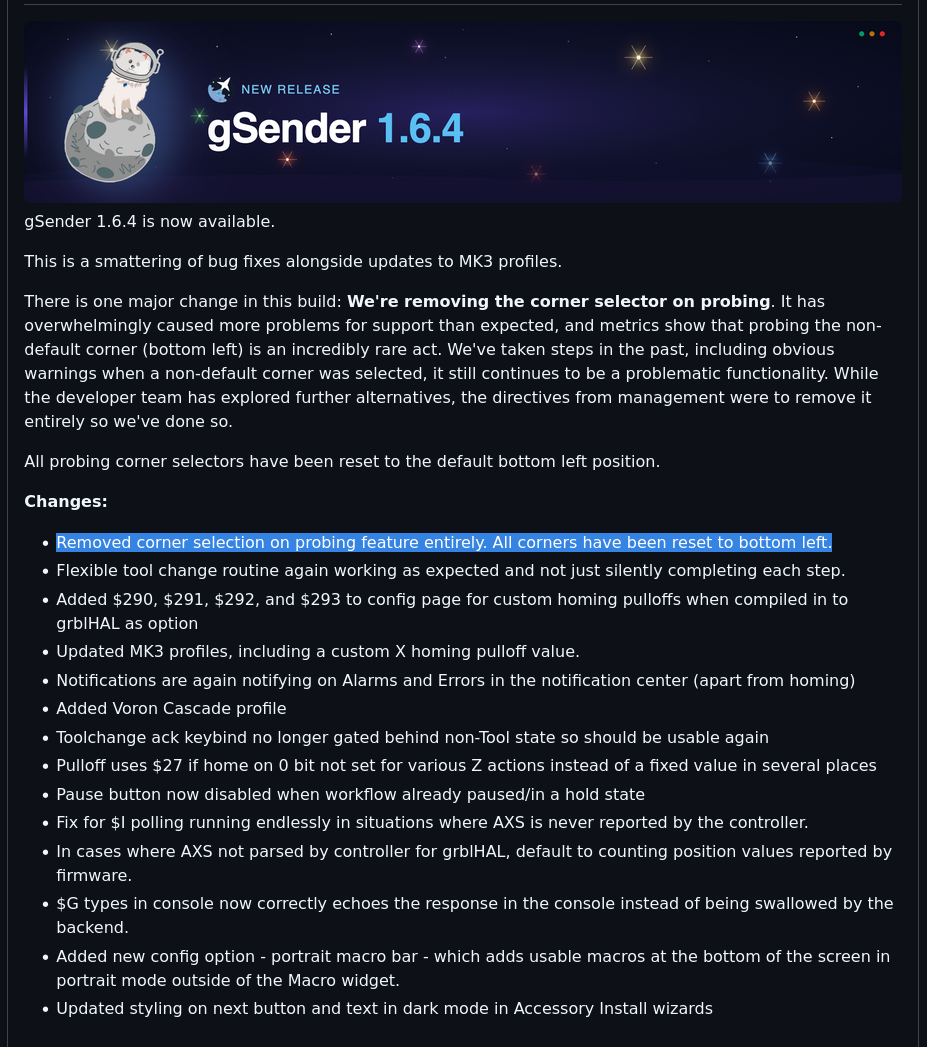
It was removed in a recent version of gSender. If I remember correctly the developers said it caused problems, wrong corner accidentally selected, and their data showed that it didn’t get much use.
You can have a version of gSender and a version of gSender Edge installed at the same time. I don’t expect it will be available in new versions of Edge but maybe the last Edge in the 1.5 series will have it and you could use that.
You can get specific version of gSender from GitHub. I’ll edit this if I can track down the version that removed the other corners.
I found the reason for removal in 1.7.0-Edge-1 release notes.
Removed corner probe selector
This is technically a loss of functionality but we have our reasons. Primarily, it causes a significant amount of support tickets where users select the incorrect corner despite the warning banners when on a non-default corner. Also, metrics show that 99% of probes are sent using the left corner so the impact should be small.
@dmsheffield And maybe ask Sienci to add it back. In spite of their rationale for removing it, several users want it. If the feature causes problems, then it needs to be re-designed, not removed.
It’s coming back in the next release as a config option (not easily swappable) - management budged after repeated feedback to go with the solution we originally recommended.
I think that the auto zero only works in the lower left corner when establishing the XYZ coordinates but you can set your tool path/model origin in all four corners and the middle. I believe that they XYZ just establishes the size of your model.
@LarryLSimmons You are mistaken about that, Larry. The xyz has nothing to do with the size of your model. It is the starting point of the toolpath. The model can be any size. The starting point can be in any corner or in the centre.
You are correct in that you can set xy 0 in your CAD/CAM software to any of the corners or in the centre.
However, right now, the auto zero touch plate can only be used to set xy0 in the front left corner. If you have not set zy0 to that position in your CAD/CAM software, you will have a mess on your hands. That will change shortly, according to KGN.
what i think i was trying to say was that setting xyz at the front left corner establishes the size of your model in the viewer. could have been wrong about that, wouldnt be the first time.
 , give me a minute

