gSender 1.7.0-Edge-2

gSender 1.7.0-Edge-2 is now publicly available for testing.
We’ve covered a number of these functions in our recent blog post, and we’re excited to let people use them! You will find a number of new features, improvement to features, and fixes that we’re excited to get your opinion on.

As always, gSender Edge is beta software - if you are afraid of something going wrong, do not opt into using it. That said, we’re always grateful for anyone who does use it and reports issues or improvements they want to see.

gSender Edge is able to be installed alongside gSender 1.6.x so feel free to use both and compare.

Plugin System
One of the hardest parts of developing software such as gSender is determining which features we want to add next. Sometimes, functionality is so commonly requested that working on adding it just makes sense. Other times, it’s determined by engineering projects in-house, such as the ATC, which lead to a host of features in gSender. The hard part is determining how and when to tackle the lesser requested features – because not every feature is useful to every user and we don’t want to stray too far from the core value of gSender as an easy-to-use sending software.

Plugins are a new feature coming to gSender, allowing both Sienci and our user base to make new features outside the boundaries of major or minor releases.

The sky is the limit - make some simple CAM, a dashboard, add a webcam - you’re only limited by time and your skills as a developer.

Installing plugins is as easy as importing a folder - gSender handles the rest once you’ve pointed it to the plugin you want to add.
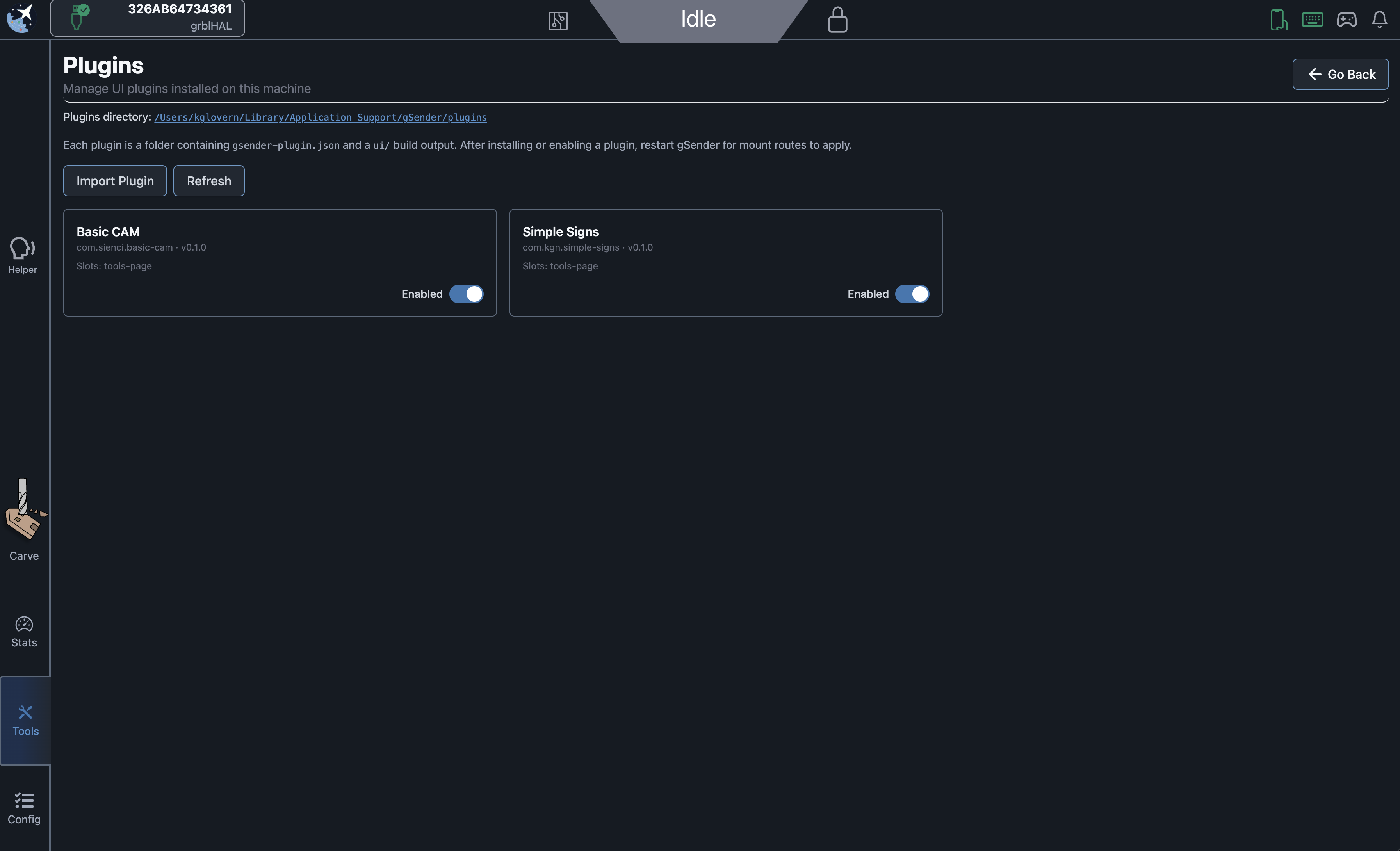
For this build, we’re mostly interested in your feedback on importing, using, any nitpicks with the UX for plugins. We’re also somewhat interested in the developer experience, and have some resources for how to start writing a gSender plugin.

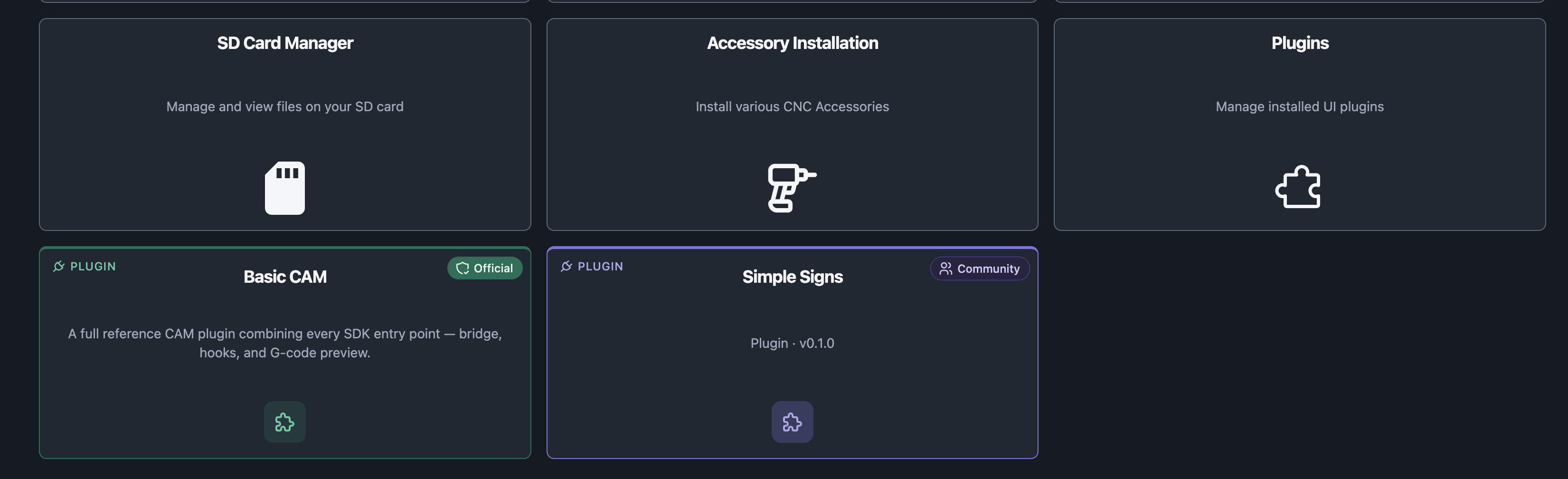
We ship with 1 plugin by default, but have a second available for users to install.

We’re very interested in seeing what people come up with.

Notes

  • Added plugin tool to Tools page to allow managing and adding plugins
  • Installed plugins appear on tool page
  • Added Plugin SDK to simplify access between gSender features and plugins
  • Added theming
  • Added plugin bridge with permissions gate to prevent calls of unauthorized functions and inform the user of what a plugin has permission to do ahead of time
  • gSender 1.7.0-Edge-1 ships with Basic Cam by default as an example plugin
  • Simple-signs is an external plugin that can be installed to test that process and is a bit more involved/feature complete

Remaining features to come:

We have a design doc of some more advanced features related to plugins we’d like to add. These will be coming in later iterations of the plugin system.

  • Improved installation (install zip or folder)
  • Shared component library for consolidated UX library
  • Plugin-specific store access/memory to save settings
  • Consistent theming
  • Update notification
  • Dock on visualizer for quick access
  • Dock on visualizer to add plugin-specific UI buttons
  • Registered message queue to subscribe to events on gSender startup

Visualizer
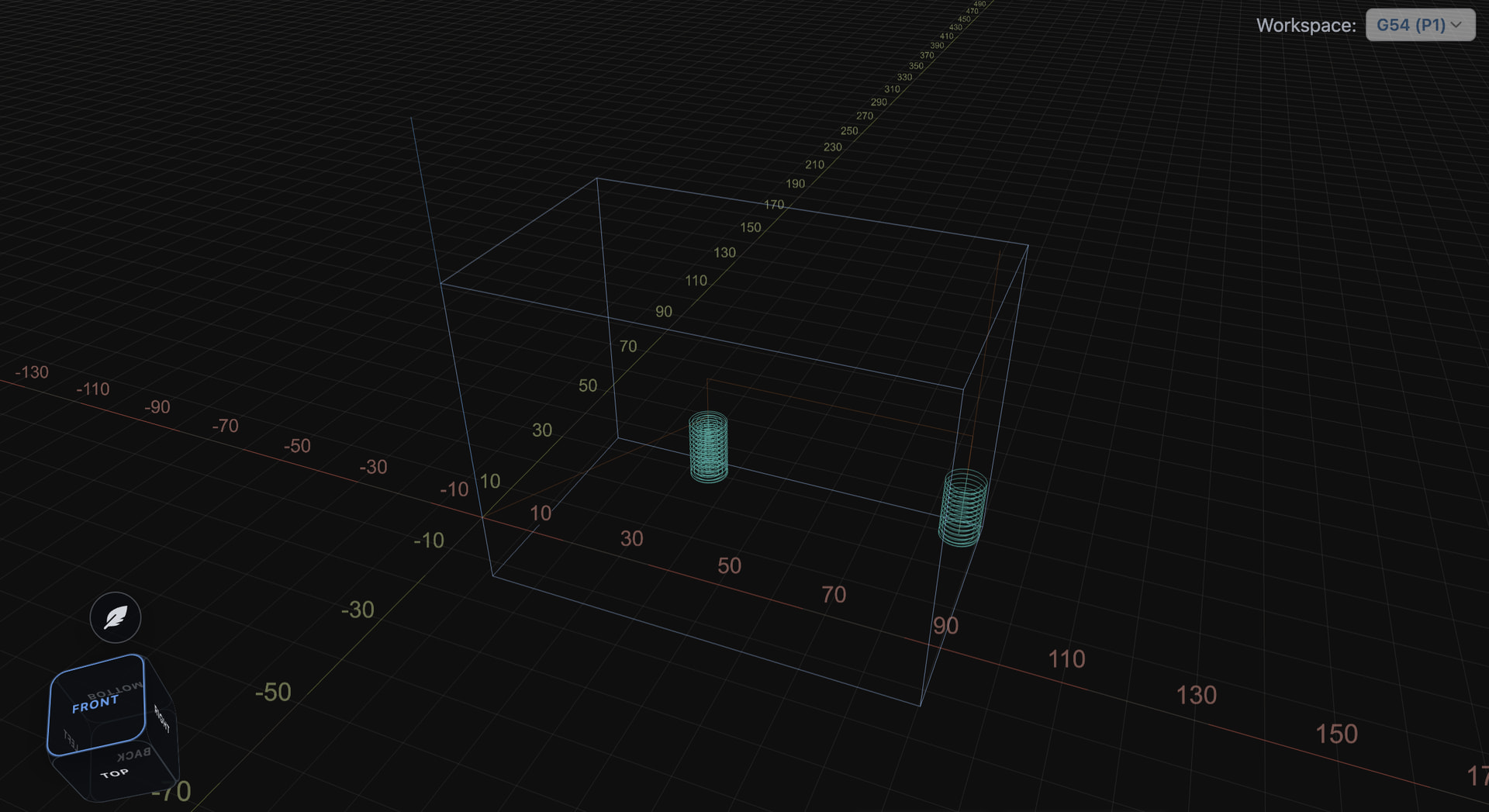
The visualizer has long been the centrepiece of the gSender UI and helps inform how the user interacts with the machine. We’ve completely re-written the visualizer into a shared library with a number of improvements and options and we’re excited to hear the feedback.

Notes

  • New visualizer with updated camera controls, animations, materials and improved performance
  • Camera cube is now fully 3D and still allows snapping to faces
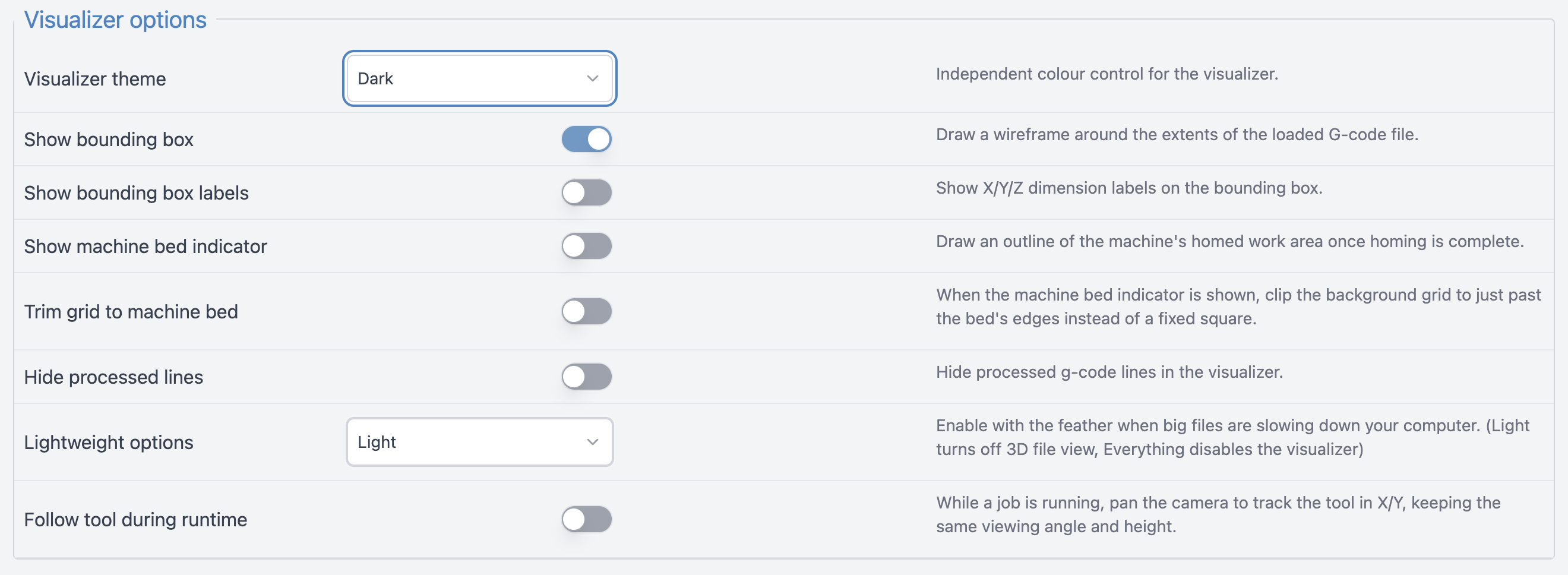
  • Improved SVG visualization in light mode, including basic positioning and toolpath origin/zero position
  • Added optional bounding box and dimension labels
  • Added several new colour themes, available in Config
  • Added follow tool during runtime option to update camera position when a job is running
  • Added several config options related to machine bed and limit switches.
    • Trim grid to machine bed limits the WCS grid to the bounds of the machine size configured
    • Show Machine bed indicator outlines the machine bed size - use these two together for a very close represenation of your physical machine inside gSender

Remaining Features to come

  • Planning lines (yellow)
  • Custom/more themes
  • 3D mesh stepthrough

Pendant/Touch UI

gSender has been a Raspberry Pi-friendly application since inception. That said, it’s primarily a desktop application, and has historically required a fair amount of processing power to run well.

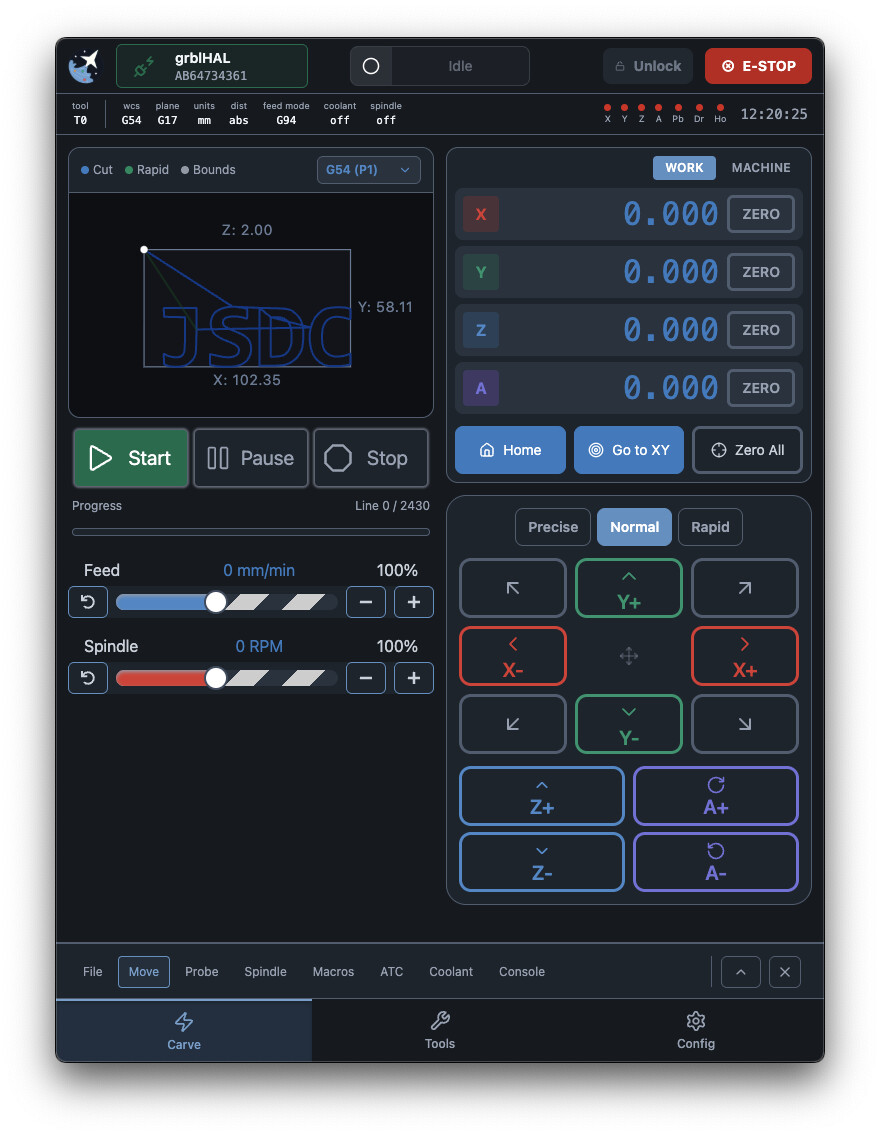
With recent optimizations, we’re looking at exploring alternative ways to interact with gSender, and are working on a pendant-style view. Designed from the ground up with touch focus in mind, this new pendant view is an entirely new user experience that runs well on integrated CM4 modules.

Featuring noticeably larger buttons, a SVG visualizer, and newly reorganized tools in expandable drawers, it’s the same old gSender in an all new responsive, and touch-forward view.
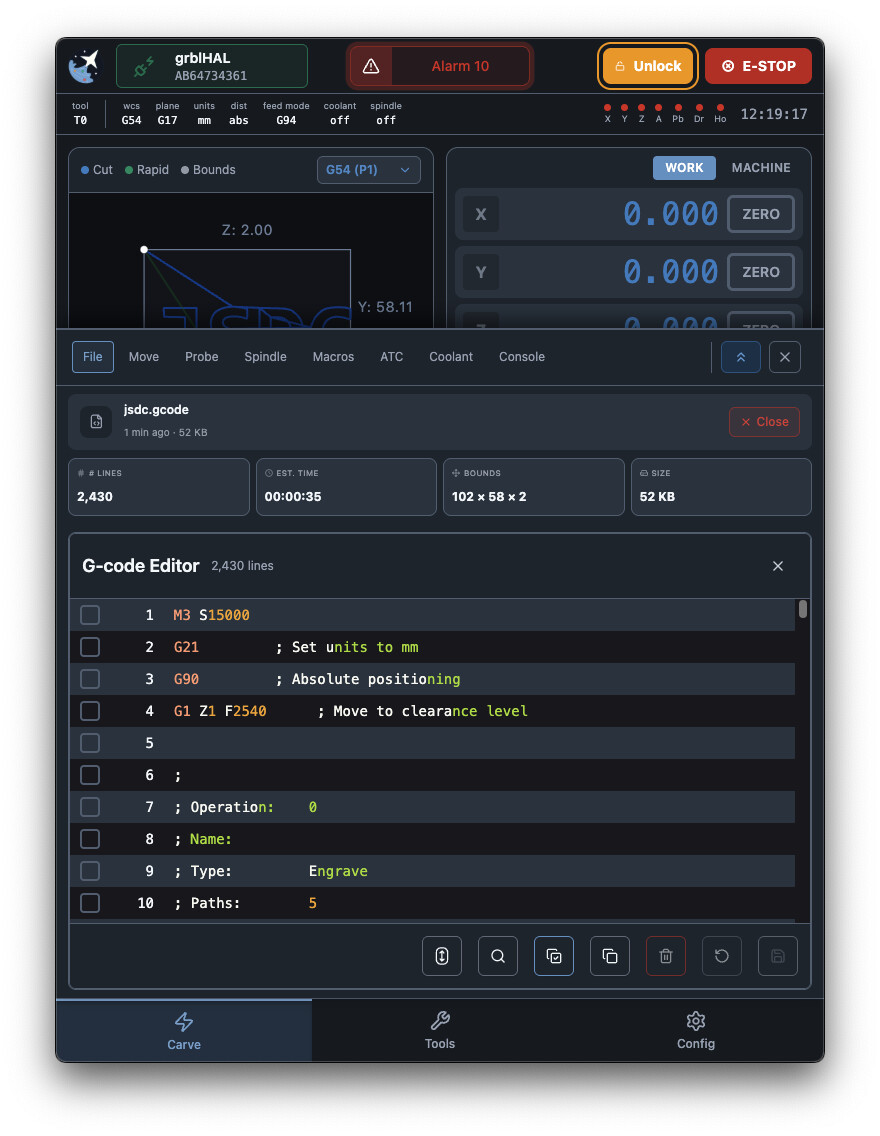
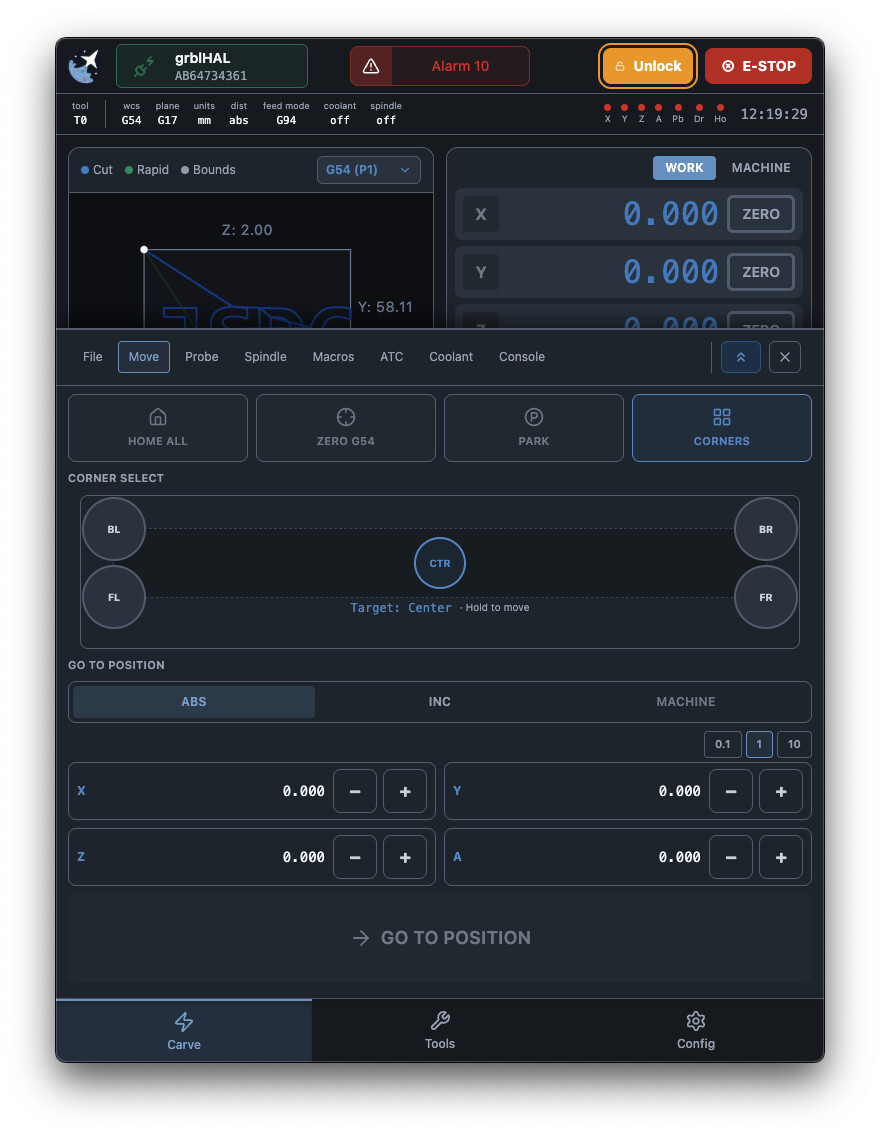
We are internally exploring providing a bespoke CM4/touchscreen offering as a more affordable alternative to the gControl panel computer in the future using this specific application. That said, the application itself will always be free – and installable/usable on the gControl if you already own one and prefer this form factor. One day the gPender will be real.

The pendant UI will likely ship as a separate application at some point - but for now can be accessed by enabling it in Config under the general section and restarting the application.

Notes

  • Added opt-in pendant UI available in Config
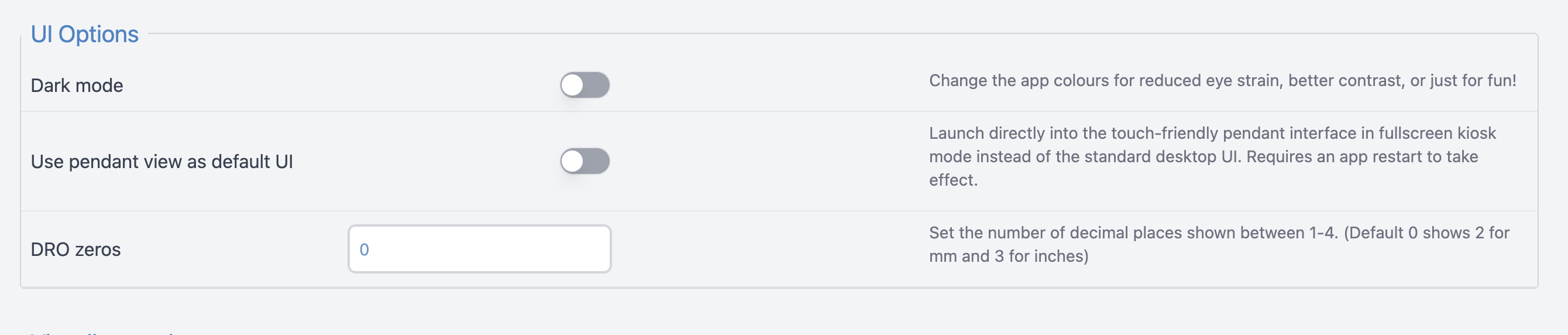
  • The pendant view is also available over remote mode at [configured address]:[port]/pendant
  • All new responsive layout and structure with a touch focus
  • Tools are now located in expandable drawers with quick actions available in the partially expanded state and more functionality in the fully expanded state
  • Some reorganization of functions into new drawer tools (like Move for rapid position and go to)
  • New touch friendly connection widgets removes need for hover, hold to disconnect
  • Updated machine status indicator
  • New rapid position corner selector
  • SVG-based visualizer using our new library
  • a pendant-view only version of the application is also available for Mac, Windows, and Pi

Remaining features

  • Tool access
  • Helper and notifications
  • UX improvements
  • Standalone application

UI Updates

  • Updates to dark mode for better visibility in dusty conditions or glare.
    • This is mostly a feedback test - we have the capability to revert to the old theme but feel this is a vast improvement for the gControl and other devices with respect to readability and usability
  • Removed corner probe selector
    • This is technically a loss of functionality but we have our reasons. Primarily, it causes a significant amount of support tickets where users select the incorrect corner despite the warning banners when on a non-default corner. Also, metrics show that 99% of probes are sent using the left corner so the impact should be small.
  • Helper - new look and feel and capability to share links/QR codes for resource links
  • Updated toast theming and branding
  • Pass-through of UI for consistency in colours/branding and sizing/text contrast
  • Colour coded and synchronized some elements (like workspace)

Behaviour updates and Small features

gSender is up to date (and even further beyond!) with gSender 1.6.3 with respect to features and fixes.

  • Click to move added to visualizer - clicking the target button to enter click-to-move mode and hold on your location to move there.
  • Helper - more integrations, look and feel updates, better integration with Sienci resources
  • Split job stats into separate file and API to improve application load time
  • Remote mode - now better syncs connection state across desktop and any remote clients so you no longer need to manually connect to a device when visiting remote on phone or desktop if it’s already connected to a machine
  • Added “Jump to line” in the g-code editor
  • Fixed tool changes pausing job progress in UI
  • Added Custom jog preset to jog controls
  • Consolidated wizard controls to be consistent across Accessory Install and main page wizards

What’s coming:

This list is just what’s available for the current Edge version, but we have more in the works. A subset of things we’re actively working on and just couldn’t make into this first beta includes:

  • Accessory recognition and auto-config on new accessory installation
  • Complete configuration tools for all Sienci accessories
  • File step-through and 3D mesh visualization
  • Integrated and updatable tool database
  • Expanded 3D probe functionality
  • Fixes and UX improvements
  • Much more!

Download

gSender Edge is available on Github:

We’re looking forward to your feedback and any bug reports, and to continue to share other upcoming features.
4 Likes

That’s a pretty amazing update! Thanks! Can you elaborate on what the 3d mesh visualization is?

Wow! Looks like the gSender team has been busy.

I’m pretty green with Web Dev, like I didn’t know SPA was Single Page Application green but I was wondering if Rust could be used to make a plugin? There are some web frameworks and it can compile to WASM.

I recently discovered that the Manifold C++ library has been ported to Rust. Seems like that could be pretty useful for a CAD plugin if it’s possible to use Rust. There is an interactive web demo to show what the library can do.

Nice work, in any case!

It’s the 3D visualizer portion to show the finished result of a toolpath via stepping through - you’ve seen this in every CAM software out there.

3d_viz

2 Likes

Anything that can cross compile to JS/web friendly format will work.

I’ll need to share our other simple plugin today, but I’ll probably compile a post at some point for further “Getting Started” tips past the wiki article

1 Like

@KGN I like the pendant view. Didn’t test it much but I did notice a few bugs:

  1. When connected, the IP address shown truncated the leading “1” from 192.168.5.1
  2. After switching to Pendant mode, you’re essentially stuck there. There doesn’t appear a way to close the app, short of going into Windows Task Manager.
  3. When in Pendant mode, if you switch that option to “off”, the dialog box to restart the UI does nothing.
  4. Pressing the button to load a file did nothing.

Basic CAM is nice. In addition to doing the rectangle, doing a straight line would be great when you want to machine a straight edge. Yes I know, plug-ins…

And installing Edge seems to have over-written the 1.6.3 shortcut on the desktop. Last time I installed Edge after 1.5, I recall two shortcuts. But I could be wrong there.

1 Like

Thanks for the feedback.

for 2) Pendant mode will be off if you toggle it off and restart the app - but we’ll make the dialog work for both states.

  1. Which load button? Both are seemingly working for me.

The rest we’ll look at for Edge-2 - likely making holding the icon close the app after some long press.

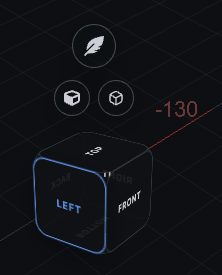
The view cube appears to be mirrored. Typically, the Top face is positioned above the Front face. Currently, when viewing the model from the top and selecting Front, the cube rotates in the opposite direction from what is expected.

The cube also feels too transparent. When viewing the Front, the Back label should not be visible through the cube.

The faces were re-ordered and opacity reduced somewhat for the next release.

1 Like

All of this should be addressed for next release, including holding the logo for exiting.

2 Likes

Edge-2

gSender 1.7.0-Edge-2 is now available for testing. This adds a number of new features, improvements, and expands on the plugin system and plugin SDK to give developers more freedom in their plugin development.

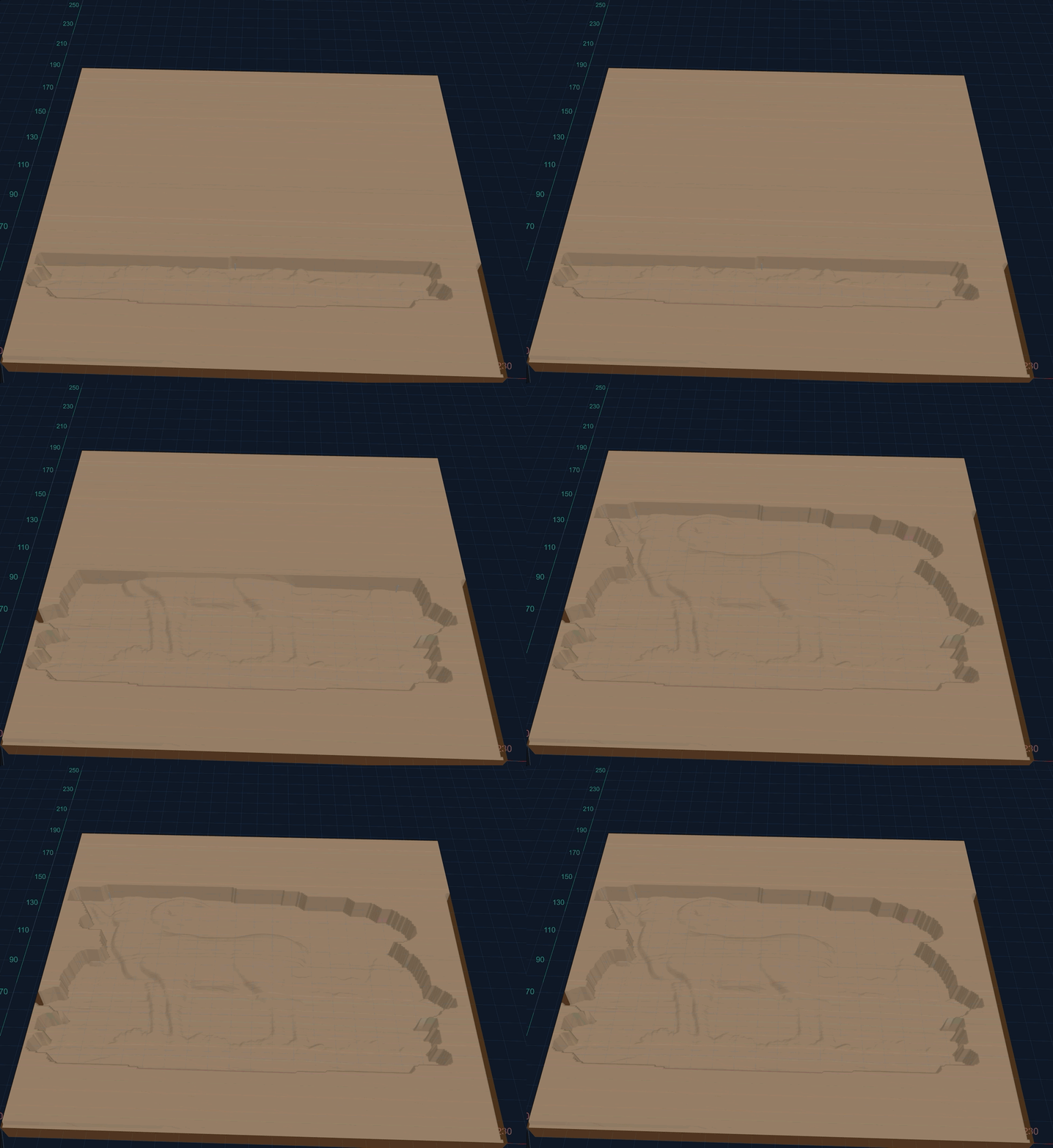
We’re very excited about some of the new features like the g-code stepper and improvements to the Plugin system and visualizer.

Your feedback is important, so all comments on each Edge version are taken to heart among the team and acted on as needed.

As always, Edge is beta software - if you are afraid of something going wrong, do not opt into using it.

Edge is able to be installed alongside gSender 1.6.x so feel free to use both and compare.

Jogging and Gamepad

Jogging is now smoother and safer across the UI, keyboard, and gamepad.

We’ve updated continuous jogging to use a steady stream of smaller movements instead of one large move. This helps prevent runaway jogging if a stop command is missed, while also keeping motion smoother and more responsive.

Gamepad jogging also gets a noticeable improvement, with less of the stuttering or jittery movement that could happen when holding the stick.

  • Re-implemented how jogging is handled for all parts of the UI when it comes to continuous jogging - now sends a series of streamed smaller jog movements instead of one large movement
  • Reduced possibilities of continuous jogging running away
  • Smoother gamepad jogging and more responsive speed changing based on joystick presses.
  • Removed gamepad MPG mode.

G-code Step through

One functionality we’ve been asked for repeatedly is better ways to interact with and simulate toolpaths before running. We’ve added various validation tools and check mode in the past, but some people prefer a more manual process.

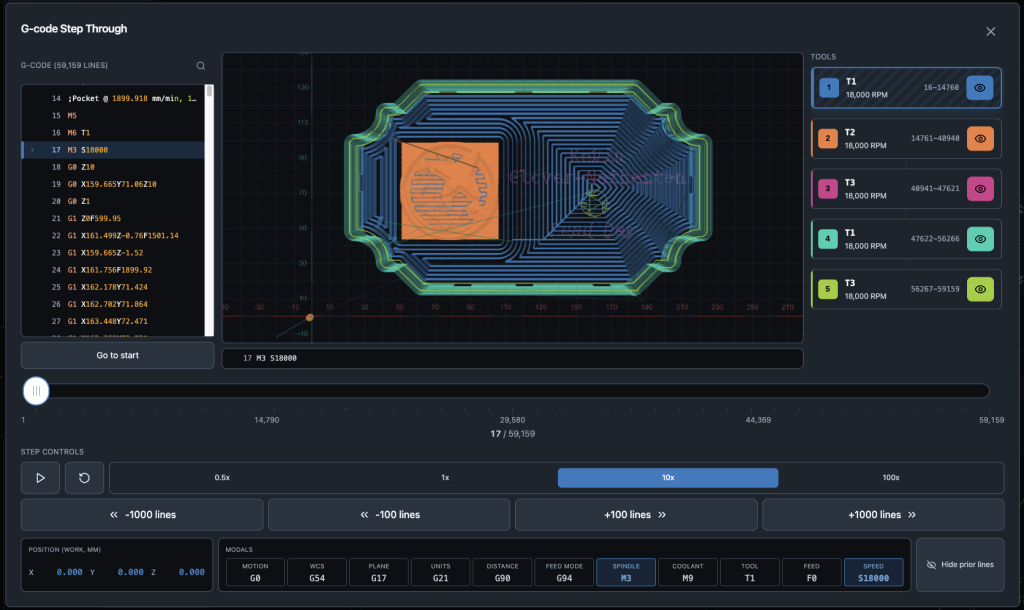
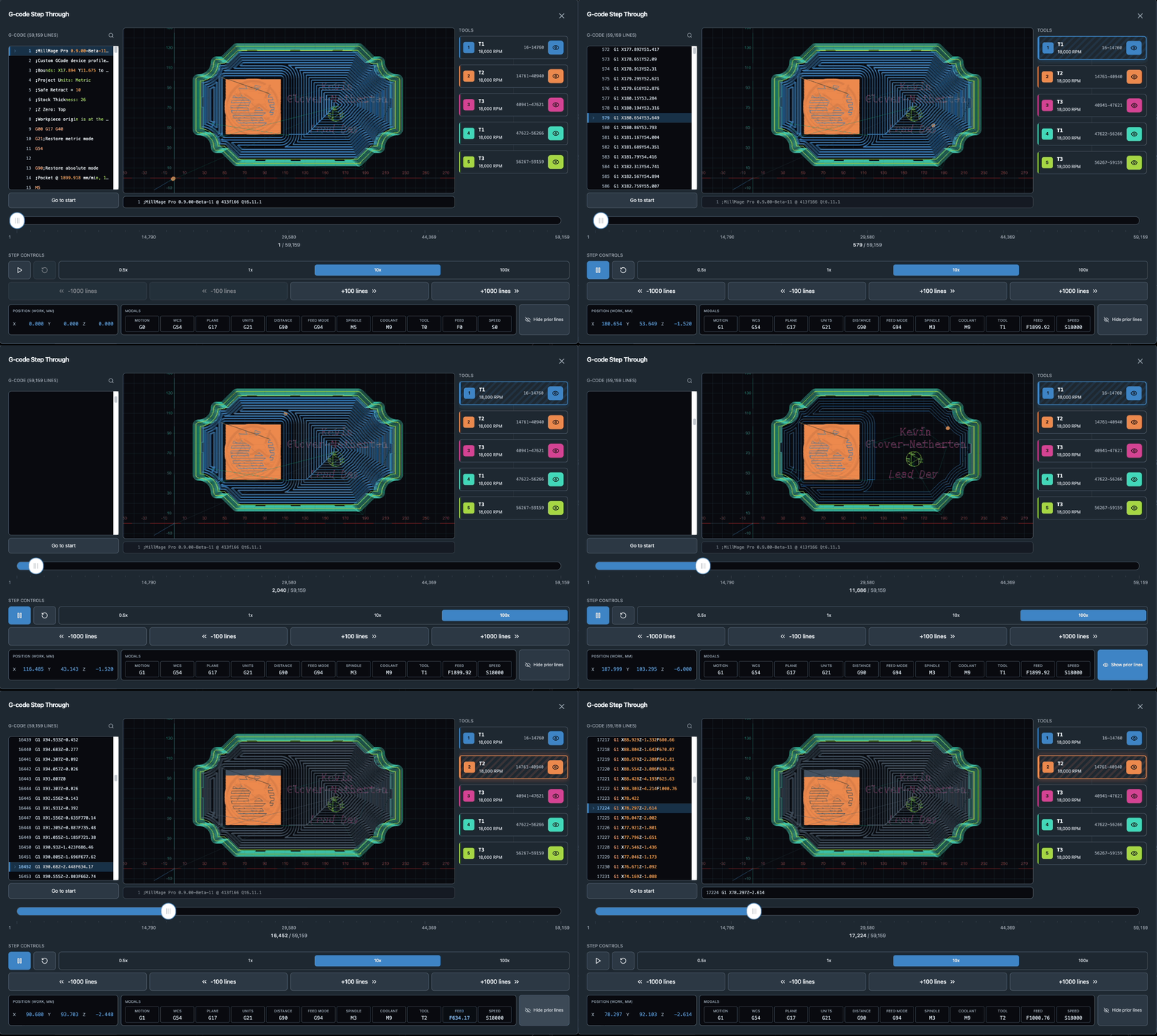
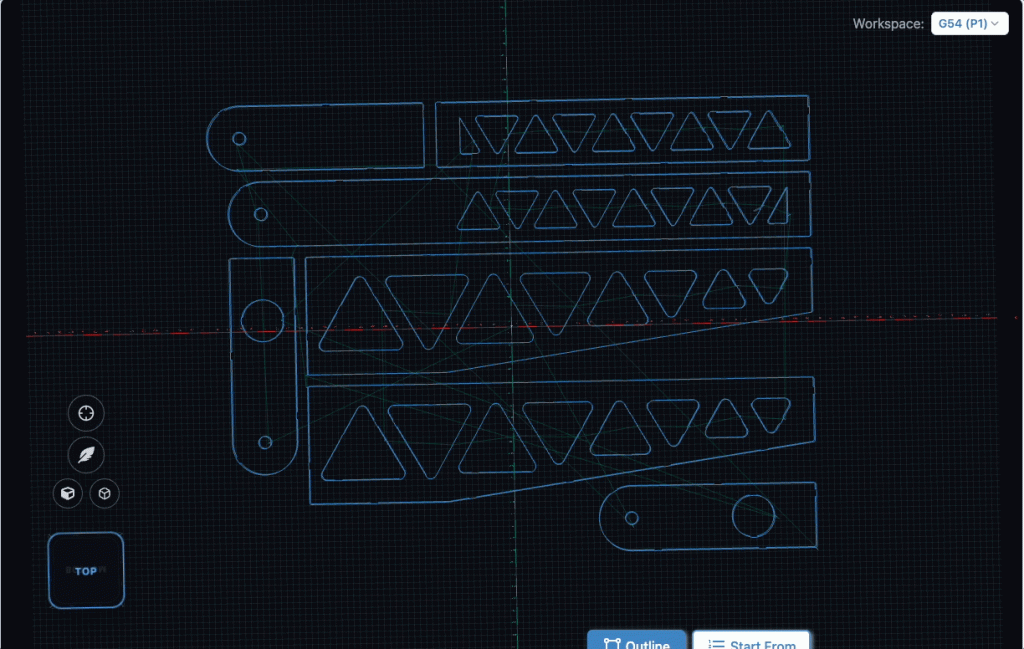
The g-code stepper tool hopefully addresses that by letting users simulate the file at various speeds, see positions and modals per line and even hide specific portions of the toolpath.

You can run a file to see the movements ahead of time, or manually scrub through by dragging the timeline.

viz_player

Your X, Y, Z and A rotations are all shown on a line by line basis, and any modal changes are highlighted to make it obvious.

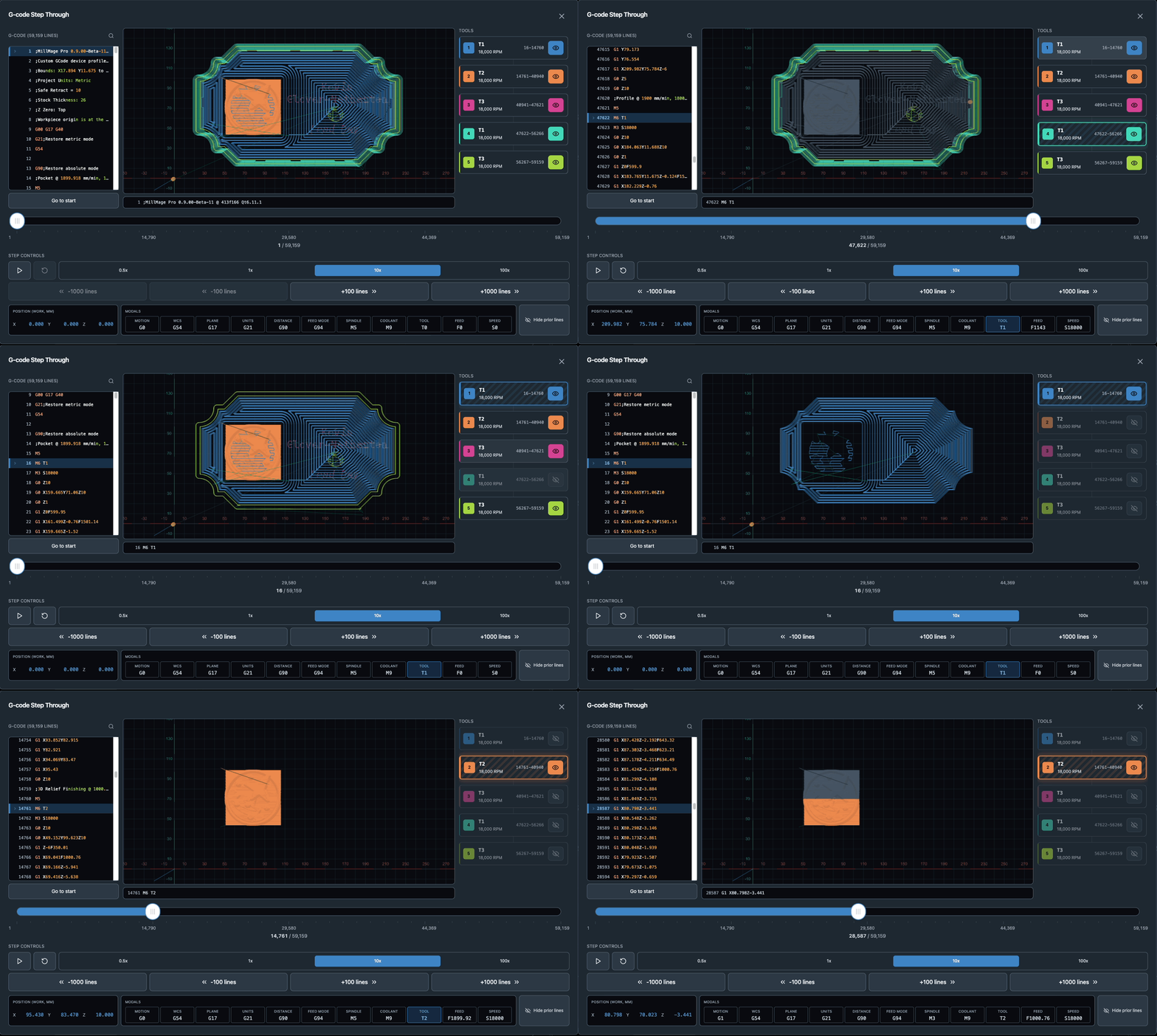
Working with a multi tool file and want to isolate specific tool sections? You can hide specific tools with a single click to see just what it will cut.

viz_toggles

We hope this is a useful addition to gSender, and work well with existing features like Start From Line to reduce the guesswork of what line to start from or the need to go to external g-code viewing tools.

Changes:

  • Added g-code stepper tool - available to open in the file information area
  • Added ability to toggle off specific sections of a toolpath by tool
  • Added ability to jump to a specific line by tool
  • Quick toggle to grey out or hide simulated lines
  • Added ability to simulate file run using time estimates, default 10X speed
  • Added modal and position view

Plugin SDK functionality

The Plugin SDK is evolving to add additional functionalities for plugin developers. The main additions this time are the ability to add parsers and event listeners for plugins to get responses back from the firmware, and storage APIs, so plugins can save settings or values for the next time it runs.

We’re hoping this make it a bit more feature complete and adds some advanced functionalities for plugin developers with more advanced use cases.

Changes:

  • Added ability to register response parsers that run on app start, not just plugin page
  • Added ability to register parsers/listeners on plugin pages
  • Added ability to query machine and read back all responses until the next OK response
  • Added plugin storage and the ability to get or set specific keys, or getAll/setAll for JSON objects. Storage is entirely key-value pairs so easy to interact with. These values are written to the store to persist between sessions
  • Added way to register plugins on Carve page to add accessible functionality there

Plugin UX

The installation and upgrade process for plugins has been made a bit more intuitive, and the UX improved to hopefully make the process as seamless as possible.

You can now change and configure your plugin directory if you want to change where they install from the default AppData directory.

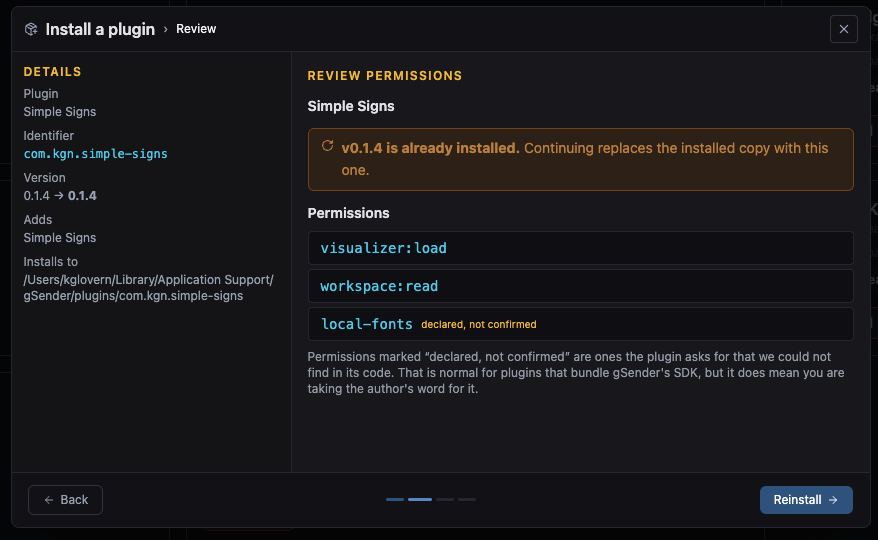
You now get a guided process when installing or updating plugins - this lets you see the permissions used ahead of time, as well as notify if it’s replacing/upgrading an existing version.

You can now also easily uninstall plugins, which persists any data but removes the files from your install directory.

Changes

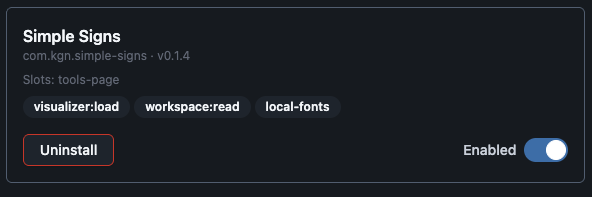
  • Added uninstall button to plugin page cards
  • Added permissions used by plugin on plugin page card
  • Added config option to select new Plugin install directory
  • Added guided install process for plugins - which will warn on replace or downgrade
  • Permissions now more visible during install process and validated against codebase where able to
  • Restart prompt is automatic and refresh plugins listing automated on plugin page

Remote mode improvements

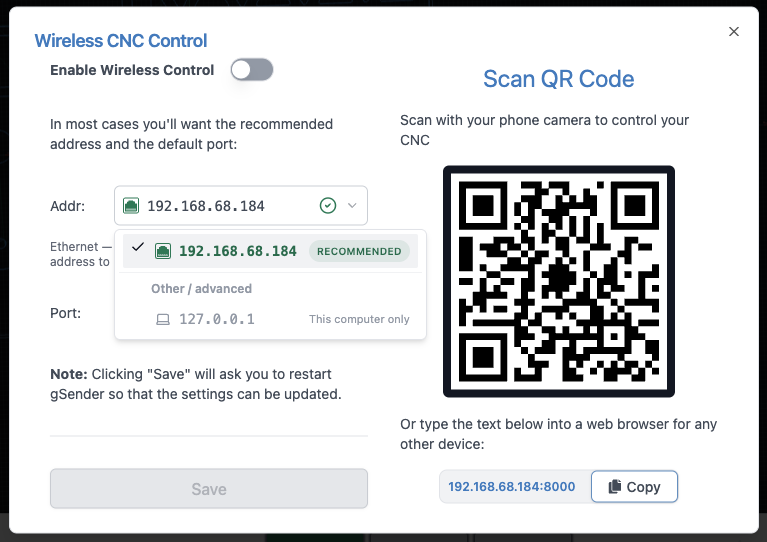
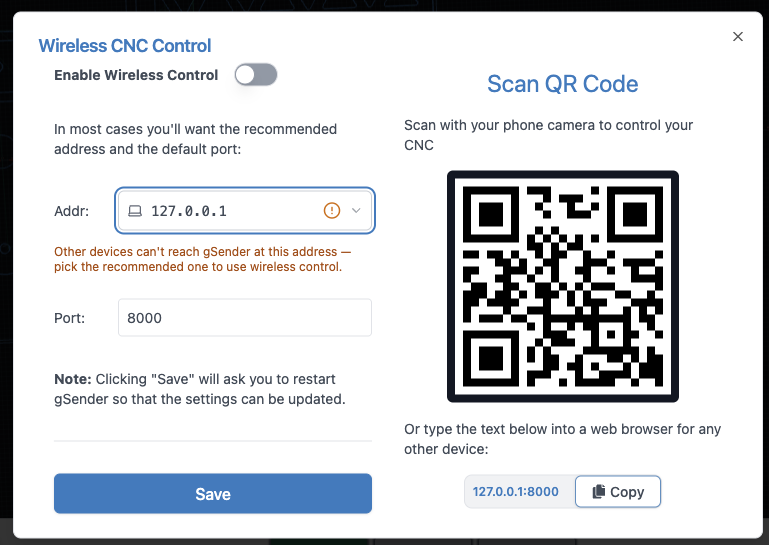
Remote mode setup can be a bit confusing, so we’ve made some UX improvements to this area. Specifically, we now determine the most likely addresses that you’ll want to use for remote connection and highlight it. We also determine type of address listed, and can warn when it will likely not result in a usable remote connection. There’s further validation based on your selected option, to make it clearer when a specific IP might not work.

This along with resource updates should result in a smoother setup process and less confusion for our users.

Visualizer improvements

Nothing too major here outside of exposing APIs for camera choice - the new visualizer uses Perspective camera by default, a divergence from the old gSender visualizer, but we’re adding some ways to toggle back and forth for users.

Baseline, gSender shows your toolpath in perspective, which is closer to how you’d naturally look at the job in the real world. Things farther away appear a little smaller, which helps give the toolpath a sense of depth and makes it easier to understand 3D moves, height changes, and the overall shape of the job while you move around the view.

Orthographic view removes that depth effect and makes the toolpath look more like a flat technical drawing. That can be really useful when you care more about exact position than depth, especially when looking straight down at the job. For example, gSender’s top-down click-to-move view automatically switches to orthographic mode so shapes, spacing, and positions are easier to judge accurately. Perspective is usually the better all-around view, while orthographic is handy when you want a clearer, more precise look at where things are on the work area.

  • Fixed perspective issues on visualizer camera - this is now toggleable in Config to use perspective camera or Orthographic camera, which is closer to how the old gSender visualizer behaved.

  • Added Toggle for isometric corner view and Perspective/Orthographic camera
  • Click to move will now swap to Orthographic camera for more accurate picking on arm and swap back on action completion or cancellation.
  • Fixed camera cube sizing on portrait mode overlapping buttons and styling somewhat (less opaque)
  • Added visualizer APIs for hiding specific portions of a toolpath
  • Flipped inversion on camera cube movement and camera cube itself

Accessory Installation - AutoSpin and Vacuum Table setup wizard

Continuing to improve our setup and configuration for our accessories, AutoSpin has been moved to the Accessory Installation section of tools, to help users setup and test their new AutoSpin. We support setting up on both grbl and grblHAL. We’ve also added an early version of the Vacuum table setup, to help prepare mounting our new vacuum system.

  • AutoSpin configuration moved into Accessory Installation wizard
  • AutoSpin setup button removed from Config
  • Vacuum table mounting and grid wizard added

Console Improvements

The console has been updated to have better touch support, making scrolling noticeably easier. This has long been a pain point so we’re happy to address it.

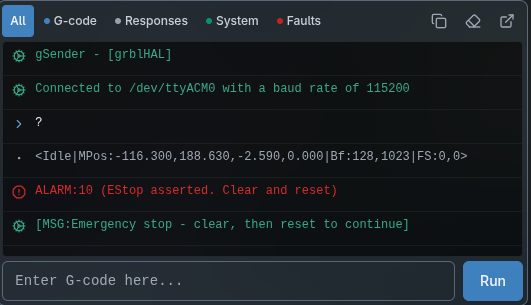
We’ve also added filters if you want an easier time finding a specific message type. Right now those filters are gcode (things you’ve sent), responses (things the controller has sent), messages (both gSender and controller MSG) and faults (alarms/errors).

  • Added better touch support handlers to console - should result in smooth touch scrolling
  • Add jump to end button when not at the end of console content
  • Added filters based on console message type - g-code, responses, messages, and faults
  • Moved copy last 50, clear, and popout to new filter bar instead of hamburger menu.

Accessory Installation - AutoSpin and Vacuum Table setup wizard

Continuing to improve our setup and configuration for our accessories, AutoSpin has been moved to the Accessory Installation section of tools, to help users setup and test their new AutoSpin. We support setting up on both grbl and grblHAL. We’ve also added an early version of the Vacuum table setup, to help prepare mounting our new vacuum system.

  • AutoSpin configuration moved into Accessory Installation wizard
  • AutoSpin setup button removed from Config
  • Vacuum table mounting and grid wizard added

Pendant UI Improvements

  • Fix visualizer load functionality so you should be able to load a file by clicking an empty visualizer again
  • Fix config toggle not restarting in some situations
  • Config toggle now prompts for both enabling and disabling
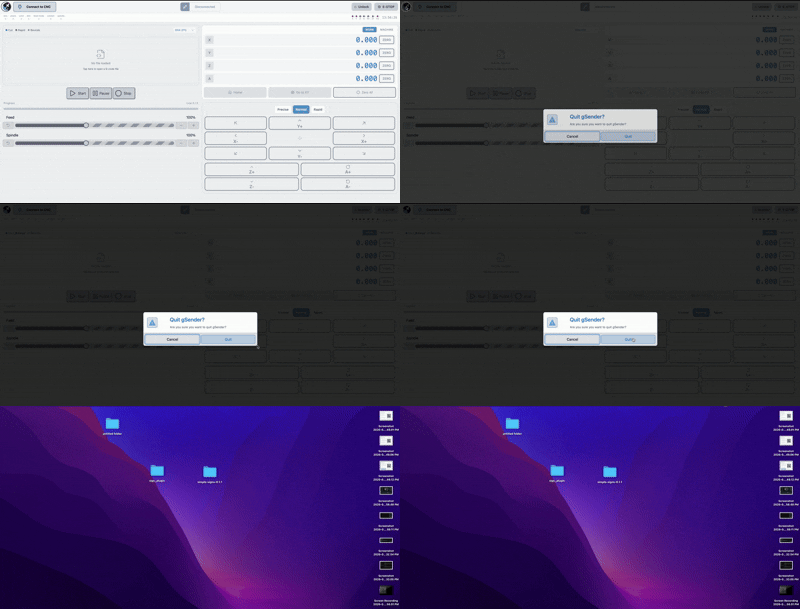
  • Added way to quit pendant UI in kiosk mode by holding the gSender icon in the top right to prompt if you want to exit.

Screen-Recording-2026-09-03-at-15626-PM

Other changes

  • LongMill MK3 profile updates
  • Removed corner selection on probing - default and only value is now bottom left.
  • Added $290, $291, $292, and $293 (individual homing pulloffs) to Homing Config section
  • Pause button now disabled in hold state on controller
  • Notifications for alarms and errors are again notifying in the main carve page notifications section
  • Added tool input for surfacing to let you pick up a specific tool for ATC setups
  • Console copying works again
  • Job stop modal no longer hidden behind g-code editor
  • Various dependency updates
  • Updated file association icon to differentiate it from the application icon
  • Config now remembers your scroll location when navigating between it and other parts of the application and shows subsections in the navigation menu.
  • Added ATC validator for tool numbers out of range of the compiled tool table
  • Fixed issue where load tool modal would instantly load the selected tool on some display scales due to event bubbling
  • Various new updated renders across tools like squaring, vortex install, spindle accessory install, and more.

Download

gSender Edge can be downloaded from Github:

https://github.com/Sienci-Labs/gsender/releases/tag/v1.7.0-Edge2

1 Like

Love that there’s so much work going on here.

One thought on the removal of homing to other corners, one idea is to just allow setting the corner under settings so it’s much more deliberate to change it and not an accidental quick tap like it was before (myself I only use lower left so I’m find with it, but I know others may care), I’m assuming you have telemetry on how often it’s actually used elsewhere and can make this decision data based rather than gut based.

Can’t wait to check out the g-code visualiser changes that looks awesome.

@KGN Any chance that the Tools section will be customizable? In other words, move or delete the tools that you don’t need? The tools I do use (generally plug-ins) are at the bottom of the list and I have to scroll down to get to them. I don’t have a Vortex, so why would I want that tool in there? So the ability to move and/or hide the tools would be great.

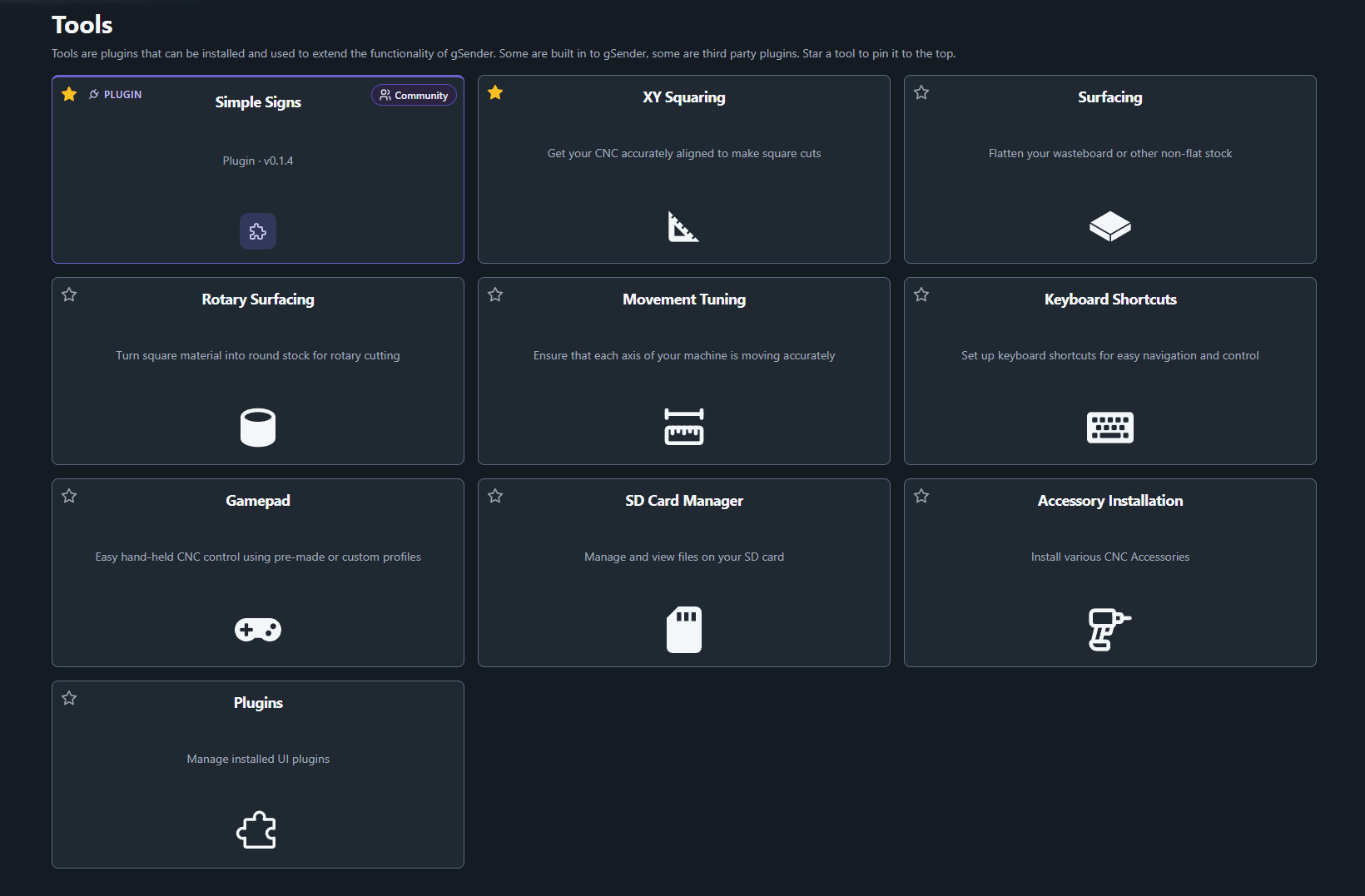
Pinning tools to force the commonly used tools/plugins to the top is part of the next Edge release.

2 Likes