I finished up my ATC installation yesterday and have been very impressed with it - for the most part. A couple of weeks back I saw a post spelling out 3 settings in the ATC Options of the Configuration module.
The 3 options concerned how the TLS probing settings were used. The default setting has the ATC probe each tool after every tool change. Another lets the user probe all the tools to be stored in the tool table and ignore the probe for each tool change, and the third I don’t remember. I want to use the second option and that’s where the problem showed up.
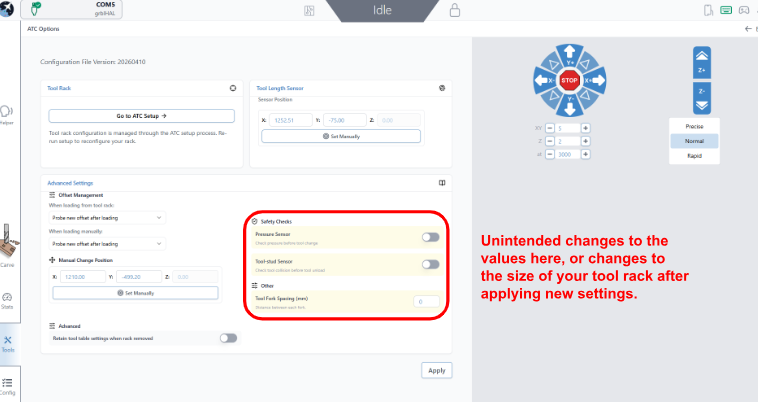
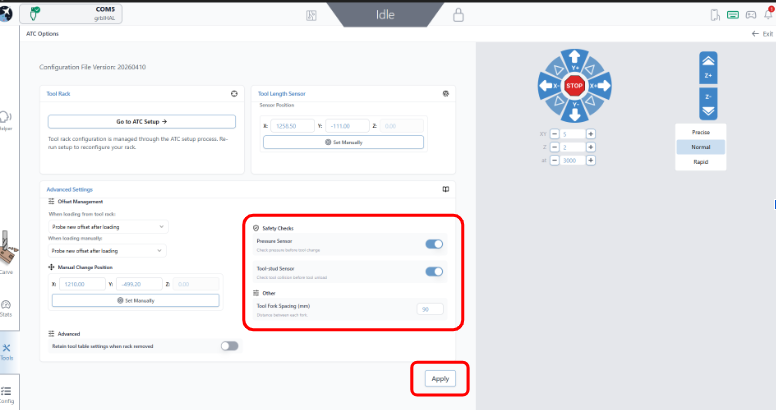
If I change the setting under ATC Options to the 2nd (ignore) option, it resets the ATC configuration back to 6 tools after I’ve set it up for 12.
I tried it several times with the same results. I even re-installed the ATC config files and Spindle setup files. Same result.
There is a bug in gSender 1.6.0 and 1.6.1 that is affecting users. The issue is if you setup the spindle and then open ATC options, there is a chance the files on the SD card get modified incorrectly and the settings get reset.
Recently, two specific bugs have been identified in gSender versions 1.6.0 and 1.6.1. These errors can cause unintended changes to your tool rack size and other settings after using the tool, and can potentially result in the ATC colliding with the tool rack.
If you intend to make changes in “ATC Options” in the future, first visit the “SD Card manager” to refresh the files list, before moving to “ATC Options”.
@JayKent242 Thanks very much for this in-depth reply and solution. I’ll download 1.6.2 and get it installed once it’s been released. In the meantime, I’ll check my macro installation on the SD card.