Having never really used CAD software before I’ve gotten to the point where I have a hole that is bored out and simulated the tool path in Fusion 360. The hole is for the wasteboard. What I can’t quite understand is how do I translate the positioning of what I have in Fusion 360 for the hole on the wasteboard to actual physical location on the AltMill?
To get a tool path, you had to set an origin in Fusion before you could get a tool path. This might be the corner (ie right front) of your stock. It may be at the bottom of the stock or the top of the stock depending on your preference.
On the Altmill side, you also set a 0/0/0 location before you start your operation.
So, let’s say your hole is centered at x 100 mm and y 100 mm in Fusion. You would then set the 0/0 location on the mill and when the program is executed, the hole will be centered at 100/100 on your work piece. The Z coordinate on the mill has to match the Z zero you set in Fusion.
If you chose to set the origin at the front right corner and top of your stock then you would locate the cutter at the front right and top of your stock.
I hope that makes at least a tiny bit of sense …
Thank you for the explanation. Have a question about statement below.
What is slightly confusing to me is when you “home” the machine at startup it goes to the back left corner which then shows up as 0,0 in gSender. If I move gantry/Y axis towards me it then shows up as a negative Y in gSender. So it seems confusing if the hole is 100mm over on the X but then a negative 100mm over on Y? or is that matching what I have in Fusion and I just don’t realize it?
Ah the mysteries of the moderation system… @DavidB, I posted an answer but it triggered moderation for some reason so it will show up some time later.
Ahh, basic misunderstanding …
When you home the machine it goes to the physical home position. When you set your 0/0/0 location that is a position in a particular work space (there are a number of workspaces). Call it a virtual location even though it is also a physical location.
When you look at the gSender screen you see coordinates that are largish and a second set that is a bit smaller and dimmed. The second set is based on the 0/0/0 coordinates that the machine goes to when homing. The brighter/larger set of coordinates is the location of the carriage in your chosen work space. It is an independent location. You set it’s 0/0/0 position when you zero the individual axis.
I think there are 8 or 9 virtual workspaces. One is default but the others can be selected by either the operator or via the toolpath that Fusion generates. This can be handy if for example you have two stations with some operations happening at station 1 and the other operations happening at station #2. Each station would have some sort of a fixture to hold your work. Your tool path will select the right work space which has it’s own 0/0/0 location set. Anyway, too much information at this stage.
I am really struggling to describe this … please, somebody put me out of my misery and explain this better than I am able to do …
@Jens Nothing has been triggered for moderation that I can see. What makes you believe that?
The message just above yours was posted at the same time as the one prior to it but made it to the forum 9 hrs later. That and the fact that I got a notification that it needed to be approved prior to being published.
Anyway, other than being puzzled what actually triggered the moderation, it’s all good. It’s unfortunate that this is required but that is the world we live in these days.
@Jens Understood. Tks, Jens. These things go happen. The system gets triggered by some key words and alerts me to approve them. I’m on here quite regularly, but if I am off for a while, it may take a little time for you to see them.
I don’t remember seeing a post of yours requiring my involvement, but since it’s you, I likely simply approved it on auto pilot.
Okay.. Thank you. So what would I do if I wanted to carve “in the air” for testing? Is there way to make Z = 0 after raising it far off the table so I didn’t have to worry about it actually touching anything?
As @Jens said, there are workspace coordinates and machine coordinates. I don’t know what the standard nomenclature is for these but that’s what I use.
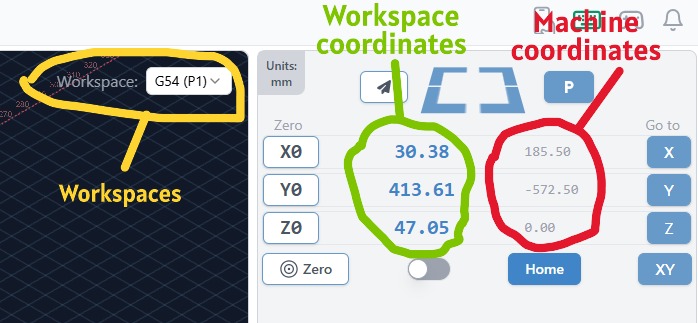
On the Altmill, the machine coordinates are relative to the home position at the rear-left of the machine. If you power cycle the SLB-EXT and rehome, the machine coordinates of any position on your bed should remain the same. I tested this within 0.01mm
The workspace coordinates can vary depending on the workspace you are in and where you zeroed the machine. Workspaces are convenient if you want to have several workpieces on the bed at the same time. For example, I did an epoxy job on one side of my Altmill and another small wood carve on another part. Each used their own workspaces with their own zeros. The epoxy job was several weeks long and I needed the Altmill for other things while the epoxy cured.
If you want to do an air carve while your workpiece is on the bed, there are several methods that come to mind. FWIW, I’d do an air carve without any bits installed.
- Using the same workspace, just move your Z up by a known distance and re-zero Z. After you have done the air-carve, lower z by the known distance and re-zero Z. Be careful when you do this. Depending on how much Z travel your actual job has, you may hit the machine limits or have you spindle move down into your workpiece (hence my suggestion to remove the bit )
- Do your air-carve in a second workspace. For the second workspace, use the same X0 and Y0 but a higher Z0. The same precaution on clearances apply here. Also always keep track of the workspace you are in beofre hitting the start button. I have had instances of a workspace reverting to G54 without my knowledge. This usually happened if I had an Alarm in the workspace I was in. This may have been fixed in the newer updates.
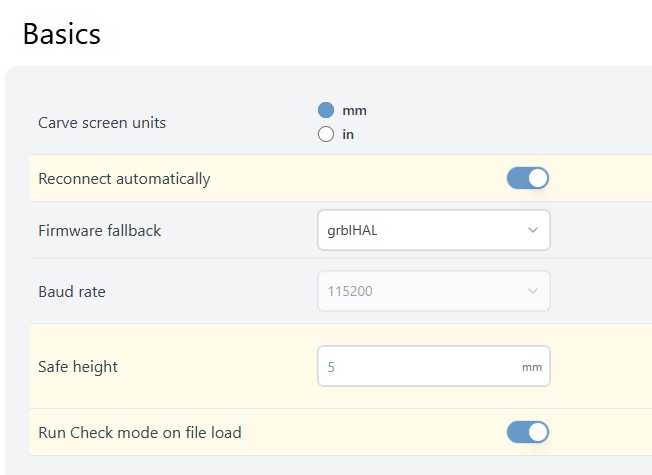
- Instead of doing an air carve where the spindle actually moves, just do a check on file load. When you enable this, the file will run without moving the spindle but you will see the entire progress in the visualizer. So install your workpiece, set the zero position, and then load the file. It will generate alarms caused by limits just as if you were running your actual job. There were are few instances where I could not get out of check mode so I had to manually type in $C in the console
@Chucky_ott Thank you! That is very helpful.
@DavidB If you have your workpiece installed and it is fairly thick, I’d avoid #1 and #2 unless I was absolutely sure that I would not hit anything in the z direction. You’ll get an alarm for any movements exceeding the top limit of your spindle. But you’ll not get that alarm in the downward direction.
I think gSender gives you your job’s Z travel so that you can calculate your clearances. You can also set soft limits and gSender to limit the travel. I do this when I use long roughing bits. They could potentially plow into the spoil board and even the aluminum cross rails if you’re not careful. It goes without saying, always have the e-Stop button close by.
 General - Sienci Community Forum
Currently I’m just trying to cut holes for the screws to hold my spoil board down. I’m using Fusion 360 since that is one of the few apps that is macOS native but has a somewhat steep learning curve just for me to get my spoil board down 
@DavidB It might be easier if you set xy0 at the centre. Home your machine and then jog all the way to the right to get your max X. Jog all the way to the front to get your max Y. Divide both by 2 to get your centre. Move to that location using the GoTos and absolute coordinates and set your XY0.
In Fusion, design your model with the XY0 at the centre.
And you’re attaching your spoil board directly on the aluminum rails, or you have a (plywood or MDF) base? I have both but the base is attached with 3/4" screws from the bottom. No pilot holes required, even in BB plywood.
First layer is 3/4" MDF that is attached to the rails from underneath and then I have second layer that will have t tracks so have the MDF between the T tracks that I wanted to fasten down with screws in bored-out holes leaving 1/4" of MDF left at bottom of hole. So I started by creating the first top layer MDF panel in Fusion 360 with single bore hole. I tested it without a bit in spindle and appears to be doing what it should be and in correct location.
It sounds like you are past newbie or a quick learner if you have already carved something out in Fusion 360. Congrats because Fusion is way too flexible for understanding a zero or home position as it can change at design or in CAM.
If you have yet to really carve this may help: Otherwise my apologies .
(Best advice for anythng really simple dont use Fusion unless your goal is to learn it not do the work. cause you havent seen frustration yet!!)
The zeros home directions can all be changed in the altmill grbl defaults too.
So you have to start somewhere accepting the machine altmill is defaulted to left back corner ,
May it rest there and home there – it is very accurate.
Convention and defaults are usually X+ is to right X- is to left :
Y+ is back; Y- is forward.
Z- is down
Just like the arrows on Gsender point
Mark a center spot on your board that you want to carve-and lets assume that is where you want to call 0,0
move the machine to that XY and zero your machine – by clicking XO Y0 or you can zero all if you like – keep z high enough for safety but within bounds of machine as you look at actual machine.
If helpful, Check these out by manually moving your altmill in gsender and watch the left box
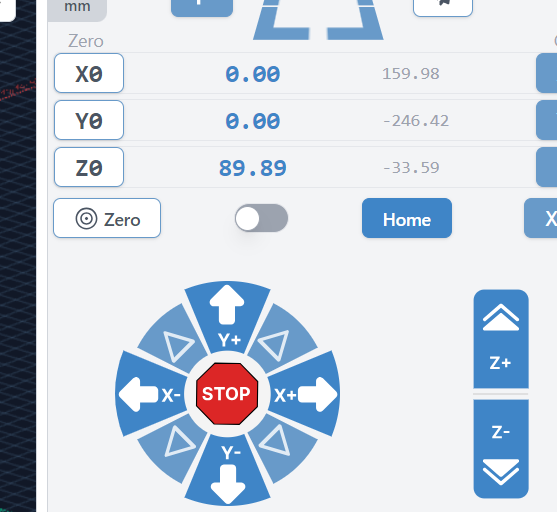
Ignore the right grey numbers for now though it will change in the same direction likely and reflects the distance and direction away from its home position too–
The blue numbers are what is going to drive the carve. In my example I am at 0,0 89 .89 mm above the z 0 and assuming i am using mm as default units.
Going down pushing z- button would show 89.89 going toward 0.
Move left right up and down viewing the numbers - this confirms what is happening.
Now if you are the programmer-- Fusion has to use these numbers to generate Gcode and move those x y and z in right direction and correct speed starting somewhere. And will use a command specifiying absolute position rather than “how far from where I am now”
In fusion the starting point is only determined when you have completed everything and generated gcode because you can change it in so many places.
Here is the beginning of my Gcode from Fusion 360–( NB you can have an annoying simulation with no gcode just as you postprocess it in fusion 360 --ie write the file to your computer after path is calculated – )
Telling me the bit size the bit used I the minimum Z that I am cutting to – but not in part shown
(2 REF CENTRAL HOLES ADJ PLUNGE RATE TO 100 MM PER MIN )
(T1 D=6.35 CR=0 TAPER=10deg - ZMIN=-22.001 - spot drill)
G90 G94
G17
G21 ;;;;;; SETS MM
(-Attention- Property Safe Retracts is set to Clearance Height.)
(Ensure the clearance height will clear the part and or fixtures.)
(Raise the Z-axis to a safe height before starting the program.)
(Drill2)
S5000 M3
G17 G90 G94
G54
G0 X0 Y190
Z20;; at z20 mm above 0 was safe to travel without cutting ; my wood isnt thick ; and zero is at top of wood .
; if you want to be real safe z40 higher and safer for wood but remember the spindle can only travel so high.
Continuing example
G0 Z10 now close to wood
G1 Z-1.587 F100;;;;; SETS A MOVE AT A FEED OF 100 – MM/MIN BECAUSE I SET G21 EARLIER– drilling – see the bit move down slowly as a drill
G0 Z-1.46 Quick move - not great idea for cutting but it is actually moving up from -1.587 above can see that the excursions are small and this is the bit emptying coming up for air
G1 Z-3.175 F100
G0 Z-3.048
G1 Z-4.762 F100
G0 Z-4.635
G1 Z-6.35 F100
G0 Z10
Just go to google and look up these gcode commands --G54 is default to where you want to call its 0,0 lets forget about it for now.
G0 is very fast move REALLY BAD for cutting. But if I am very high above and cant hit anything going right to that point from where the spindle is no sweat.
G0 is fast move G1 requires a rate and is quite slow in this example
you will see that the minimum Z shown is only Z- 6.35
and there is a G1 command before it with a Feed rate of 100
This partial code may look familiar if you are drilling in fusion . At least you will find the coordinates of the drilling to be spot on unless you are actually trying to countersink in fusion / actually boring holes not really drilling .
So to make a long story short-- by looking up Gcode example and gleaning from fusion in 5 minutes
you will quickly determine what 0,0 ,0 is-- which direction you are moving in and the relation to you model, work piece , and gcode generated.
Not sure you needed this and hope it helps.
took a lot longer than 15 minutes to write up-- but it is easier to actually write the g code manually than to use fusion for drilling even when doing fancy stuff .
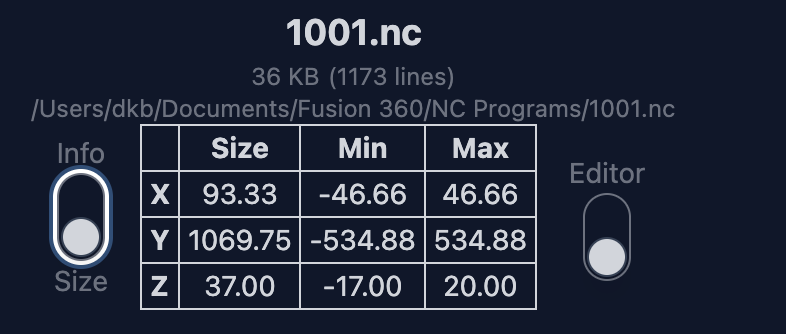
I know I tested this once in Fusion a while ago and got the spindle to actually move like it was boring a hole but now anything I try in Fusion 360 and generate gcode for it results in out of bounds errors. I must be doing something really dumb with this origin thing.
@DavidB move your spindle to your workspace zero (using the GoTo XY button). What are the corresponding machine coordinates (grey numbers)?
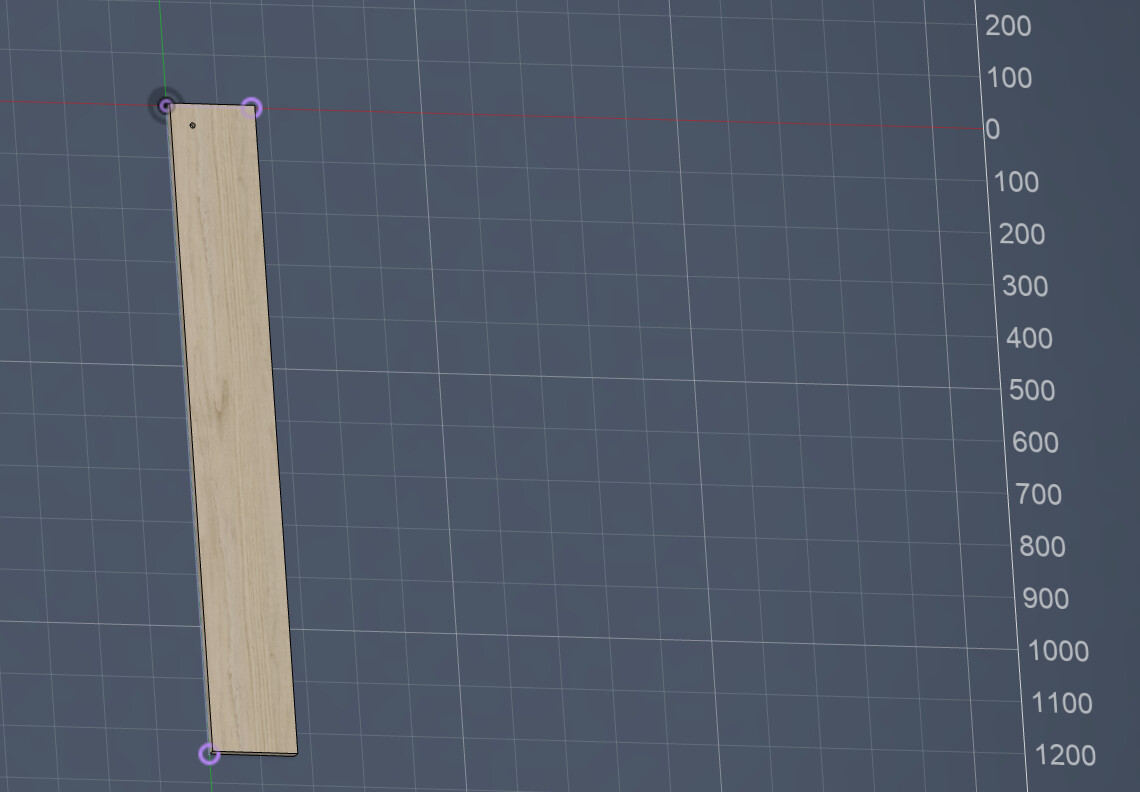
Looking at your screenshot, your zero is at the centre of your workpiece.
When it cuts it will move to a maximum of 46mm to the left and the right of the X0 and a maximum of 535mm front and back of your Y0.
If your machine coordinates at your zero location doesn’t allow that +/-46mm x travel and +/-535mm y travel, you’ll get the alarm.
Okay.. how do I get it to export from Fusion 360 as though it is starting from machine home position since that is where the spoil board will start anyways?