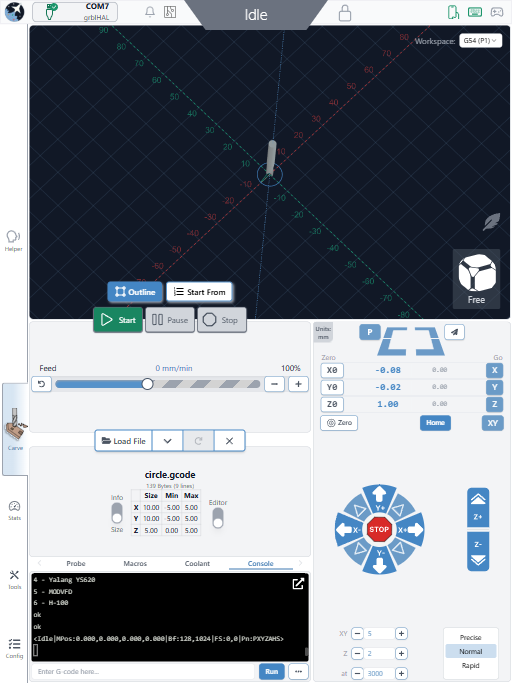
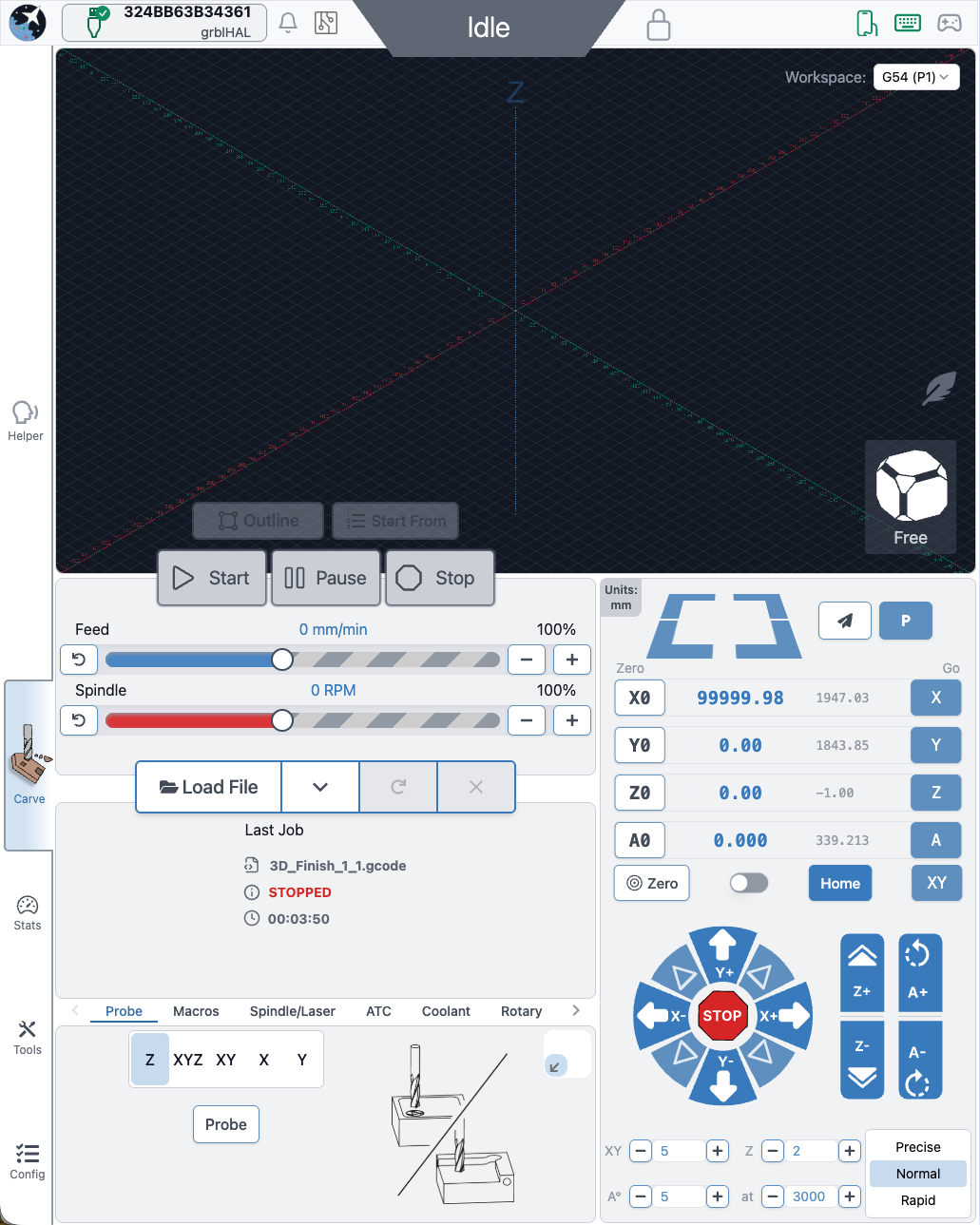
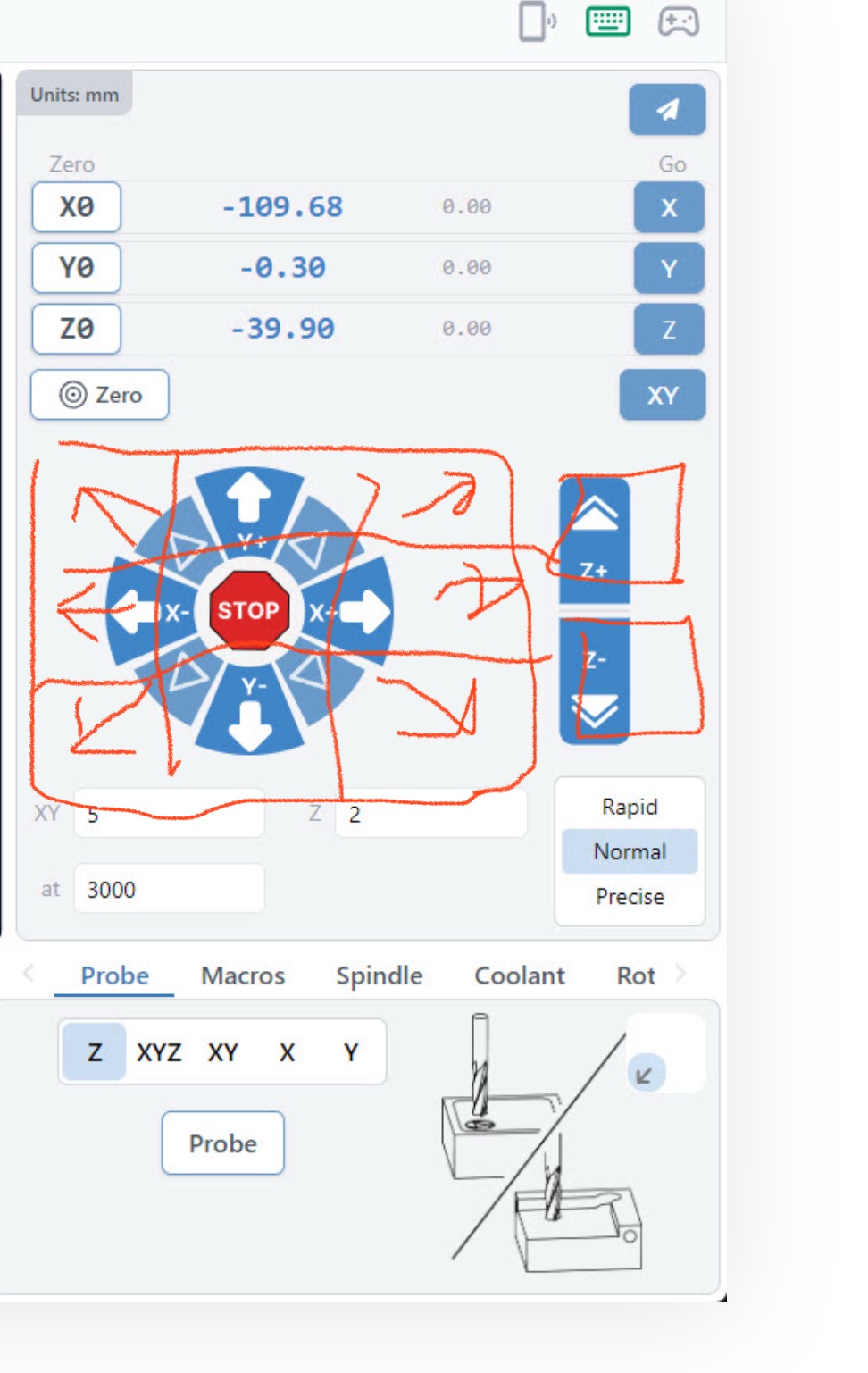
I have an issue with the layout of gSender, specifically the location of the move to the current XY home position. The button is simply too close to the return to Z home button location, which can easily be touched by mistake. Yesterday I did it twice, once breaking a tool and the next snapping a support arm off of my Francis Creation AutoDustBoot. Grrrrr.
The return to XY home button needs to be considerably larger and moved to a safer location.
@mick_s I totally agree that all the home, zero, and jog buttons are too close. I’d really want that section to be much bigger, even if it meant a smaller visualizer. In fact, I suggested the visualizer to be a pop out window that could be moved to a second monitor. Or maybe a tabbed layout with the large buttons on its own tab.
I’ve made several errors like you and now pause and double-check before pressing anything.
I was just thinking of that today. In fact I do a little karate-kid meditation before I hit the Z - Zero so as to make sure my hand is steady and wont hit the other buttons. Great suggestion.
@mick_s Until Sienci designs the GUI with old people in mind, another option is to create your own buttons on a tablet. Take a look at this post from Grant: Controlling gSender with a tablet
I think I’ll give it a try.
I have a 20-button programmable keyboard to which I assigned a bunch of shortcuts. Each key can be assigned up to 5 macros, for a total of about 95 shortcuts. I’ve got a whole thread on that too. But I don’t like it. Too many buttons and I have to be really careful when I using it. And that’s just with two macros per key. I might reprogram it to only have one macro per key. Seemed like a good idea at the time.
I have the same programmable keyboard. It’s sometimes convenient, sometimes a pain, like when you accidently touch a button while doing a tool change, etc.
I have a mouse just for that purpose, but haven’t set up a convenient pad for it yet. I did switch to portrait mode from landscape. Portrait has better separation. I’ll most likely switch to ncSender soon anyway, so it may not be an issue.
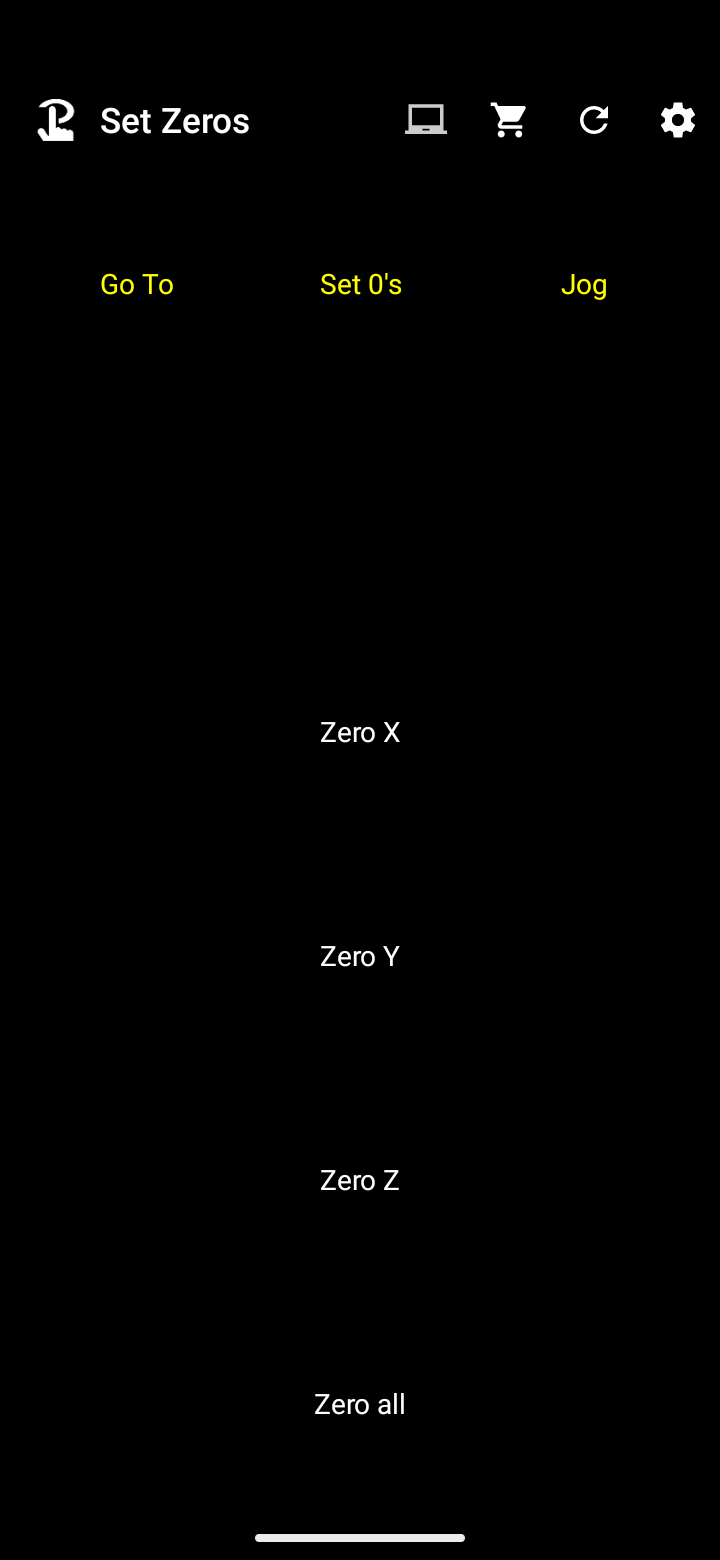
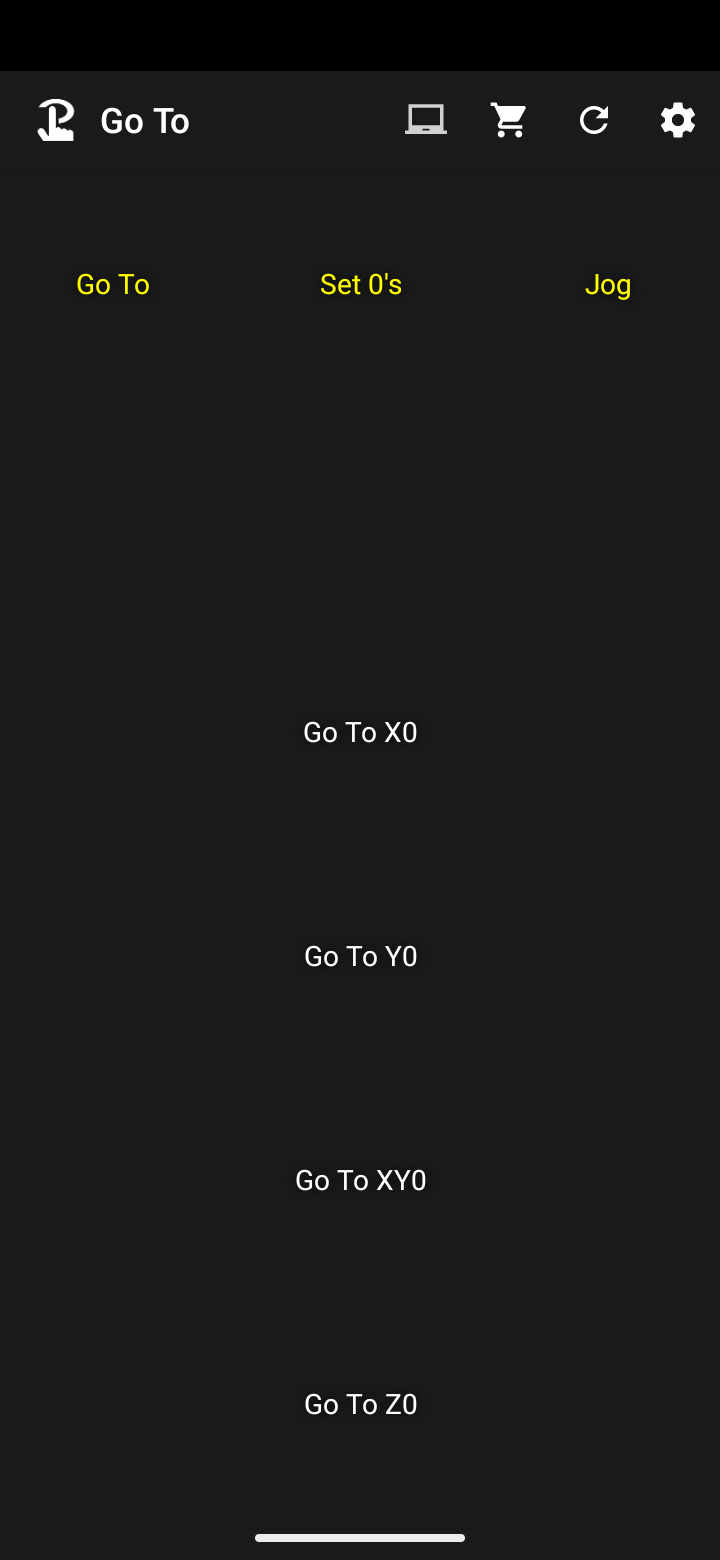
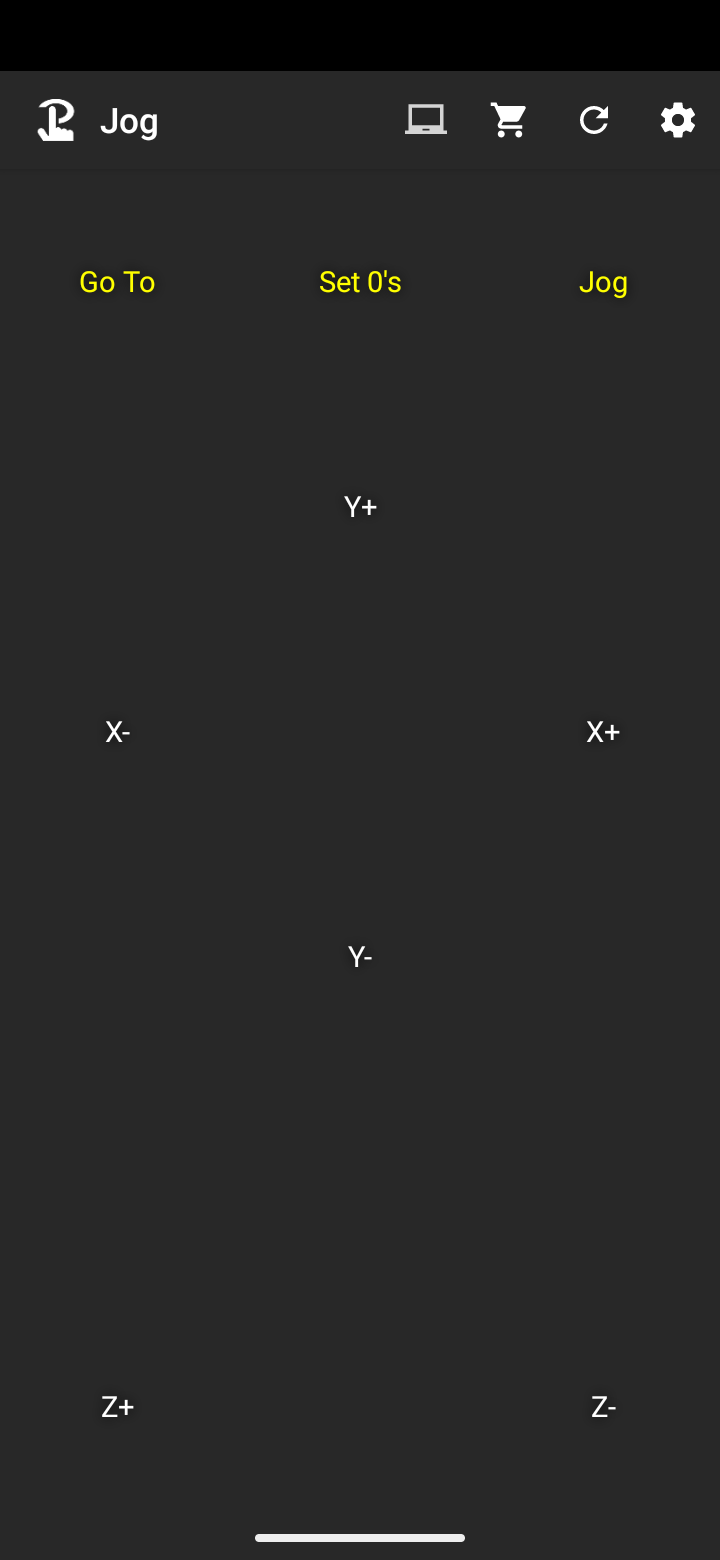
@mick_s I just downloaded Touch Portal to my phone and it does a decent job of it. I didn’t customize the buttons yet but so far I have three pages: one for the Go To’s, one for the Set Zeros, and one to Jog. Will try with custom icons when I have time.
By having each of these on separate pages, there are only a few buttons per page, making it easier to select the one you actually want. Unfortunately, the only way to switch page is to have a switch page button. So you’d need to use up three spaces for these buttons and do it on all three pages. There might be a better way but haven’t fount it yet.
If I had a tablet, they could probably all be on the same page.
@mick_s BTW, I assume you meant “current XY zero” and “return to Z zero”, as opposed to home? To me, “Home” would be the rear-left of the machine and not necessarily the current zero position.
In any case, that wasn’t why I am posting this follow up.
On the Altmill, when using the “GoTo” buttons, the spindle Z is supposed to move according to the Safe Height value before doing any XY movement. But here’s the catch. As explained in the notes for that value, if homing is enabled (which it is on the Altmill), the safe height value becomes an offset from the top of the z-axis.
So if you have it set to a high number, the spindle may not move at all before doing the XY movement. I believe the default was 5mm.
Unfortunately, confusing as it is, the term Home is also frequently used to refer to the current work offset, e.g. Home 1, Home 2, Home 3, etc., which are just the G54, G55, G56… coordinates. I was in the industrial CNC biz for a few decades before I retired and the old school jargon still sticks. Sorry for the confusion.
@mick_s Yeah, I was also using “home” to refer to the zeros, but I could see it was causing confusion when reading the posts on this forum. So now I try to make the distinction between the two. It was especially a problem when you wanted a user to home the machine and not bring it to the zeros.
On another note, all of the videos I’ve seen that show the ATC in action show it touching off the tool measurement block after each tool change. Is this the case or is it just the way the video is edited? If it does do that, why not just store the tool length in the tool location info until that tool is changed out for another in that rack position?
OK this’ll be a bit of a digression from the initial topic but…
That’s not the case, that’s just the way it was configured at the time of recording.
All tool offsets are stored on the board permanently (so persisting through power cycles) - the grblHAL tool table allows up to 32 tool offsets stored. The ATC macros themselves are configurable with three different strategies:
Use Tool table and verify (default, what you’ve seen in videos and “safest”, uses the stored offset but verifies with a probe which has some upsides in that we can then warn if the offset has dramatically changed for whatever reason like a broken bit)
Use tool table and don’t verify (no probe, just use stored offsets), and
Avoid stored offset and probe always.
Default value is “use stored offsets but verify” which is the safest option but the user will always be able to change it depending on their workflow. We assume there might be a learning curve where the defaults work fine for most people but as comfort grows with the system you can tweak the behaviour. Power users will take the training wheels off, most likely.
A lot of the safety features (like checking tool presence or air pressure) are also configurable on or off depending on the users discretion but we’re definitely leaning towards what we’d consider the safest configuration by default.
Why isn’t gSender optimized for the screen size of the gControl?? The icons/buttons are far too small to be legitimately used as a touchscreen item. The fonts are too small and there’s far too much empty space that could be utilized to enlarge all of the above items. I understand the Z buttons change when A axis is enabled but the jog control definetly should be enlarged. You mention that it’s being optimized for portrait view but does that mean landscape view continues unchanged? Before you ask, I have played with the scale and text sizes of my gControl panel and maxed it out so that I don’t have to scroll at all and still be able to see/use all the controls. Honestly the layout/sizing is my biggest gripe about the software. I really hope you guys continue to push and improve it like you guys always do. Thanks for your work!

 Others - Sienci Community Forum